Need AI Fin Ops? How to set up Microsoft 365 Copilot AI FinOps and Cost Management


Introduction

Following on my last blog post, Do We need AI FinOps? I heard a resounding yes! I wanted to continue the story.

Microsoft have been busy releasing the next reason that your AI bills are going to increase: Persistent Agents. These agents are part of the Agent 365 ecosystem with their own personal identity, mailbox, user account and tools.

Unlike existing Copilot Studio agents which are often initiated and tied to a user, these are an extension to the Autopilot concept and allow you to have AI Team mates.

The AI Teammates are hosted on the Github Copilot Harness, so they are billed through usage-based billing UBB and because of their nature, they are going to be harder to control because they are accessible through Microsoft Teams and Outlook, via chat and email respectively and also Microsoft Office via the Word, Excel and PowerPoint comments feature.

So, what does this mean?

Well, it is further proof of the need to get serious with your AI FinOps spend. So let’s discuss the process of setting up the Cost Management features for Microsoft 365 Copilot.

Microsoft, have also been busy. They have added more features, giving you more control in how you can configure these billing profiles and spending policies.

However, the clock is ticking when Microsoft released these usage based billing features they were switched off by default. This is due to change, from 1st December 2026 a default spending policy will be set-up for CSP purchased Microsoft Copilot Business licenses.

More information can be found here.

October 2026 announcements – Partner Center announcements | Microsoft Learn.

https://learn.microsoft.com/en-us/partner-center/announcements/2026-october#4

Where Microsoft Copilot FinOps Controls Live

Microsoft have put the Microsoft Copilot FinOps controls directly in Microsoft 365.

It all starts in the Microsoft Admin Centre (MAC) https://admin.cloud.microsoft.

Browse to the Copilot Node -> Cost Management

The image displays a dashboard with various tabs and statistics, including a total of 10,206 Copilot Credits used, no credit increase requests, and an account team that has used 5,790 credits.

AI-generated content may be incorrect..

Here you can set up a general policy which covers everyone in the business who has access to use these tools. My recommendation is that you work with your CFO to define a monthly spend and then allocate it to all your users. The pricing is based on 0.01p per Copilot Credit, so 1000 credits is £10.00, and 10000 Copilot Credits is £100.

The first step, as mentioned, is to plan out what budgets and policies you are going to apply to the organisation. In my experience, you will have at least two spending policies but most likely more based on the usage/value scenarios.

  1. General Organisation
  2. Copilot VIPs / High usage/value users.

Setting up your spending policies

To set up a spending policy, do the following:

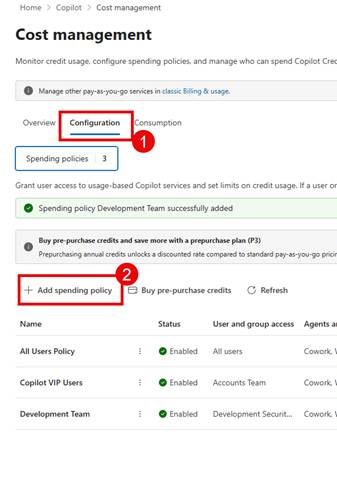
  • Click on the Configuration Tab under Copilot->Cost Management
  • Click Add Spending Policy
  • Here you can choose the services that will be applied to this spending policy. I think the interesting one is the option at the top, “Allow new Agents and services as they become available” which shows that Microsoft have more services that will use this way of billing and here you can choose whether to automatically enable those. I suggest that you switch this off if you want to have control of the onboarding of services.

We have the following services, expanding Microsoft Copilot allows us to choose the sub-Copilot experiences.
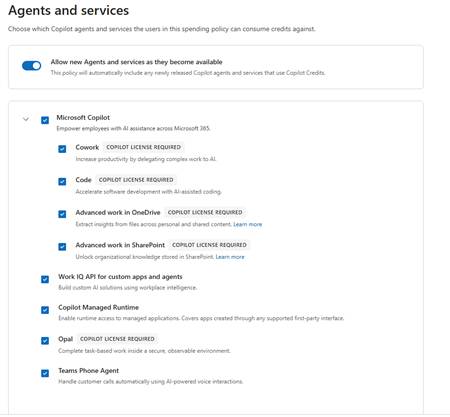
I am glad that they are giving us a way to turn off the services at this level and being able to control who can create Managed Apps with Code vs who can execute those Managed Apps through the “Copilot Managed Runtime”.

A quick summary of the services is shown below

ServiceDescription
Copilot CoworkA task-based Copilot experience for carrying out advanced, multi-step work on a user’s behalf; it requires a Microsoft 365 Copilot licence and consumes Copilot Credits for eligible usage.
Copilot CodeA software-development experience that uses the GitHub Copilot coding harness to help create and complete coding work. Eligible usage requires a Microsoft 365 Copilot licence and is governed through Copilot Credits and the organisation’s spending policy.
Advanced work in SharePointProvides advanced AI-assisted work over SharePoint content, helping licensed Copilot users analyse and act on organisational information while its usage is governed through Copilot Credits.
Advanced work in OneDriveProvides advanced AI-assisted work with files stored in OneDrive, enabling licensed Copilot users to analyse and work with their content while usage is charged through Copilot Credits.
Work IQ API for custom apps and agentsAllows custom applications and agents to use Microsoft 365 work context and organisational knowledge through Work IQ, with API consumption metered separately in Copilot Credits.
Copilot Managed RuntimeA governed hosting and execution environment for internal line-of-business applications, providing Microsoft Entra authentication, connectors, policy enforcement, central inventory and usage monitoring; running eligible apps can consume Copilot Credits.
Teams Phone AgentAn AI agent capability for Teams Phone scenarios that supports automated handling of calling-related work, with eligible usage managed through Microsoft 365 Copilot spending policies and Copilot Credits.
  • Click Next once you have selected the services you wish to include in the spending policy.
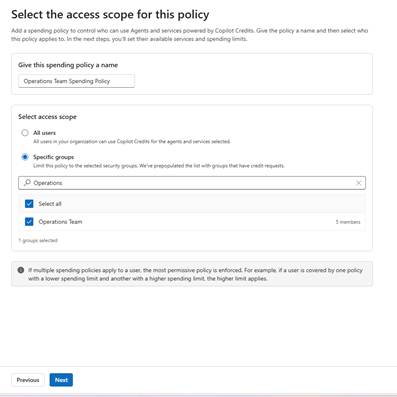
  • Now you need to give the spending policy a name.
  • Select whether access scope should apply to everyone or a group of people. If you select specific group you can choose either Microsoft 365 Groups or Security Groups.
  • Choose your group if you are going down that route.
  • Click Next

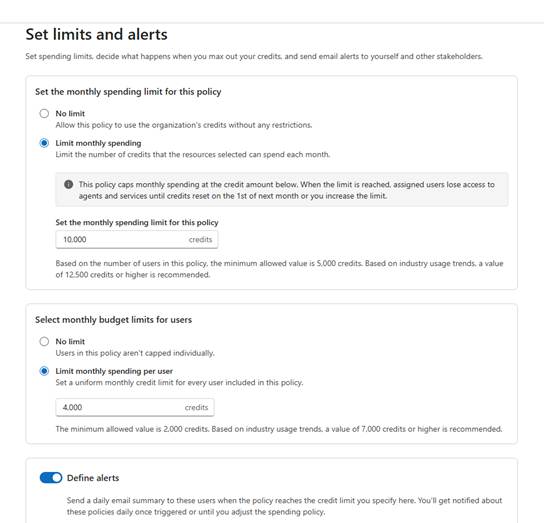
Now you are ready to setup the spending policy limits.

  • Choose whether to have no limit or apply a monthly limit, I would advise the later.
  • Additionally, we can choose to limit individual users within a plan. If you want to ensure that a particular user does not consume all of the credits then you can add an individual limit. I would suggest doing this in the first instance. If you have a suer that is getting more value from AI then most you can always move them into their own spending policy and manage them individually or group them with other Copilot VIPs!
  • Finally, we can define alerts, the user interface will change depending on what options you have enabled.
  • You can provide a list of users and then choose the limit as to when people should be notified this can either be based on % consumption or individual credit consumption. Additionally you can be alerted when a user reaches a % of their capacity as well.
  • Once setup click Next

Finally choose how you are going to pay, you can choose to include this spending policy in any pre-purchased payment packs as well as llnk it to your Azure Subscription. You will need to have access to the Azure Subscription to be able to link them to the Spending Policy.
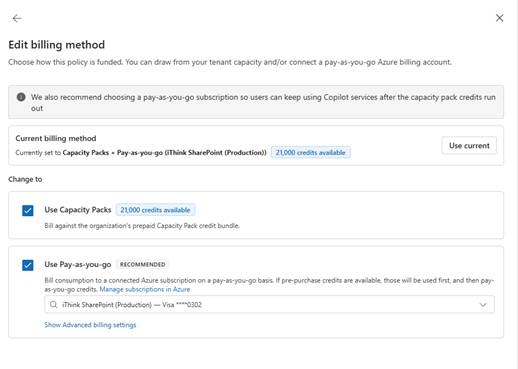
  • Click Next
  • Review your spending policy settings
  • Click Create Spending Policy.

You can always go back and edit the spending policy if you wish by choosing the spending policy and clicking Details.

Reviewing Consumption

Once we have set up our spending policies then we will need to review who is using what every once in a while.

  • Clicking the Consumption tab will reveal the different views where we can review at a policy, user, group or service level.
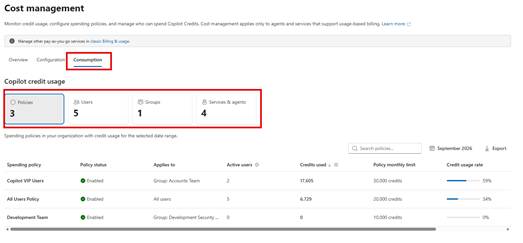
  • It is worth highlighting that depending on the view you can change the data that is being viewed. For example at the policy level the top-right filter allows you to view by month, current month and the entire year.
  • If you choose the user level, you can also drill into an individual’s consumption level. You can see which spending policy has been applied to them if they are in multiple policies and how their daily usage is working out.
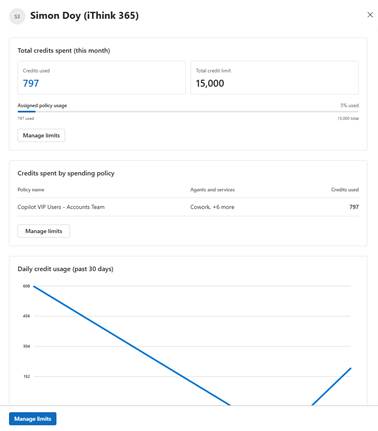
If you want to look into the usage in more detail then there are more options on the overview page.

Usage – Overview Page

The Overview page will allow you to get more detail on the Copilot usage.
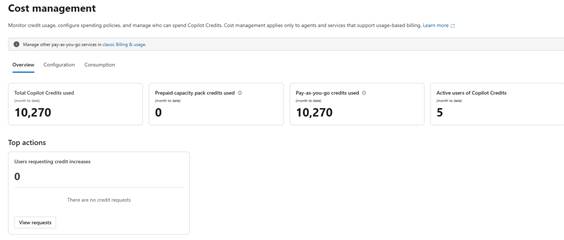
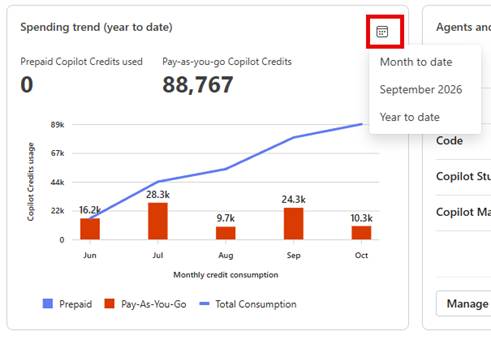
I find the Spending trend particularly useful which can be configured to show a different scope of data.
What about Copilot Agents and Copilot Credits?

So, you might be looking at these screens and instructions and say that looks great Simon but what about controlling my Copilot Agents and Copilot Credit consumption.

Unfortunately the controls to Copilot Agent Copilot Credit consumption is not found here which is a bit of a shame but I suspect that is down to keeping those controls under the Power Platform Admin team rather than confusing things within the Microsoft 365 Admin centre.

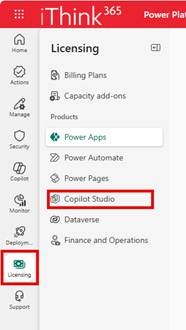
To setup controls for Copilot Studio Agents you will need to be a Power Platform Administrator and browse to https://admin.powerplatform.microsoft.com

  • Click Licensing to be able to see the licensing and billing settings.
  • Click Copilot Studio

So, with Copilot Studio we pay for Copilot Credits either through Billing plans or by buying Copilot Credit / Message packs.

  • Click on Manage Billing Plans to see the list of billing plans.

If you wish to create a new billing plan, make sure you have access to an Azure Subscription as a contributor or owner.

We are using the resource group name copilot-credit-[envtype]-rg for our resource group names.

  • Add a new billing plan by clicking “New billing plan”
  • Give the billing plan a name, choose the Azure Subscription you wish to link the billing plan to
  • Choose the resource group you have setup
  • Choose the services that you wish to be billed through the billing plan.

My advice is to select the Copilot Studio and Dataverse and Power Automate and keep the rest separate so you can control the Copilot Studio aspects.

  • Choose the region and then you will see the environments in that region.
  • Select the Power Platform Environments you wish to support for this billing profile.
  • Click Save.

Managing Prepaid Copilot Credit Consumption for your environments

If you have Premium licenses you will have Copilot Credits available which can be allocated to environments or alternatively you can allow an environment to pull the Copilot Credits from the tenant wide available credits.

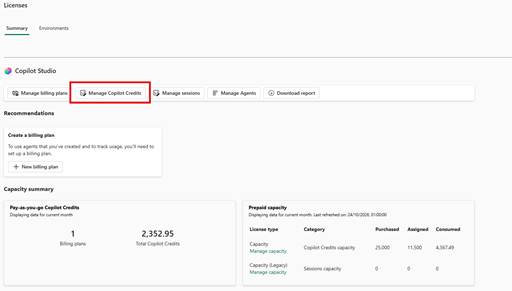
To control this use the “Manage Copilot Credits” button.
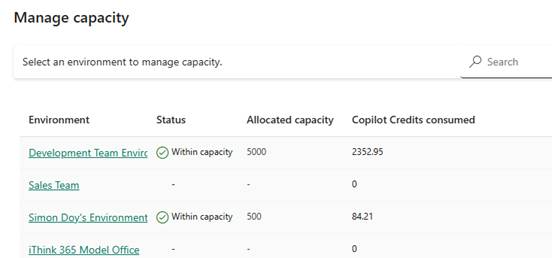
From this view we can see a list of Power Platform environments with columsn for current Copilot Credit Consumption and Allocated capacity. Additionally, you can see if there are any environments which are not within the allocated capacity.
To update the available Copilot Credit capacity

  • Click on the environment name
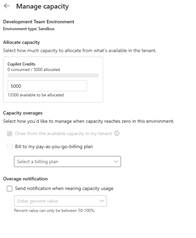
  • From here you can control the following
    • How many credits are available to the environment.
    • Whether the environment can draw from tenant capacity. My screenshot shows it greyed out because it is managed via a managed environment group policy.
    • Choose whether to have PAYG enabled as well, I have this switched off for development environments. However, I would suggest enabling this for Production with alerts so that you can ensure that your agents continue to work if they go over Copilot Credit capacity.
  • Finally, you can set up alerts.

Please ensure you have allocated some credits to cover your consumption otherwise your Copilot Studio agents will be impacted.

  • Click Save to complete your setup.

A note on the option “Draw from the available capacity in my tenant.”, I had an issue where this was disabled and I could not set it through the Managed Environment wide setting. I ended up having to switch the option off and back on again at the Managed Environment level to get this option to update. Until I did that, I could not configure Copilot Credit allocation as I kept getting an error.

Copilot Studio Consumption Monitoring

The monitoring of Copilot Credit consumption is possible through the Manage Agents button within the Licensing -> Copilot Studio menu.
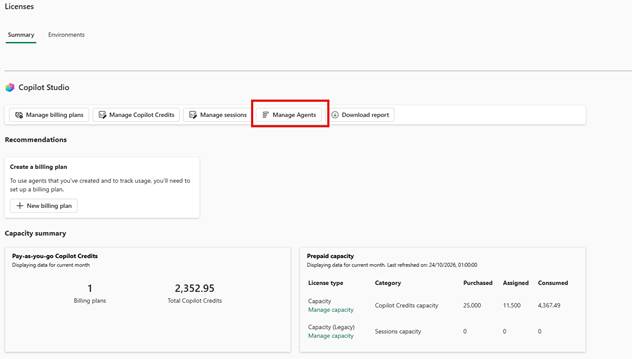
We can now see each of the agents across the Power Platform environments.
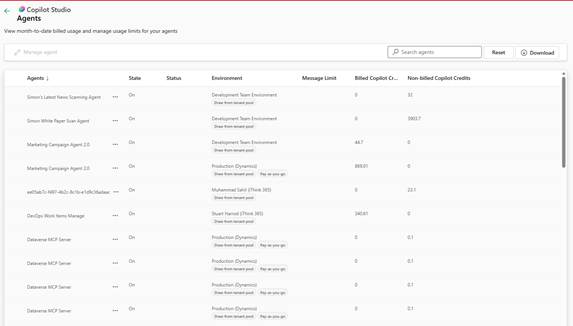
Here we can see consumption of Copilot Credits which have been billed through a spending policy and those that have used pre-paid credits.

If you wish to get more detailed information, click “Download Report” you can choose the number of days history in your report to get more detailed information.

Limiting an individual agents consumption

We can also limit an individuals agent Copilot Credit consumption within this screen by clicking the … next to the agent and choosing “Set Limit”.
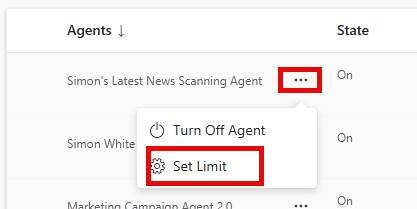
  • From here we can allocate a capacity limit for an individual agent.
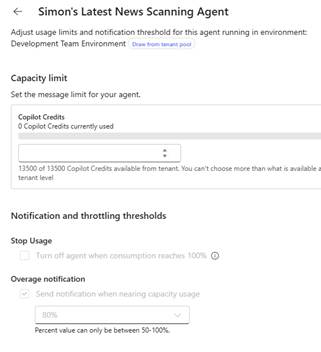
  • This is a really useful feature to put some controls around your individual agents!

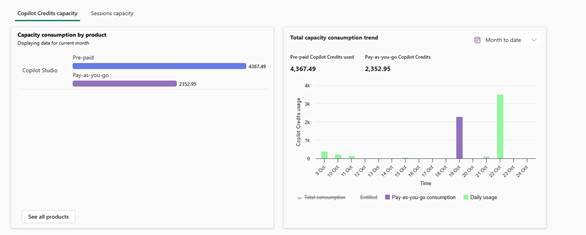
Copilot Studio Monitoring

There are a number of different reports and charts which are worth exploring which allow you to see who is using the agents and what their consumption is either at the pre-paid billing of pay as you go billing level.

Additionally, we can see which agents are consuming the most credits which is useful to help us get an idea of what typical credit usage might be for a year.
Conclusion

In this article we showed you some of the features that we can put in place to manage AI consumption, billing and FinOps around Microsoft Copilot and the various billing controls.

There is more coming to this area from Microsoft, in particular expect some more announcements at Ignite 2026.

One of the things that writing these articles helps to do is solidify and find those sometimes hidden options. I had not seen the individual agent credit control before which has been a great find.

I would love to hear your thoughts and what controls you would like to see which are missing.
AI Generated Image of Simon Doy with thumbups and elements related to Azure, Model Context Protocol, AI, Copilot Studio and Containers displayed in the background.

How to: Build a Custom MCP Server with the .NET MCP SDK, host as an Azure Container and connect to Copilot Studio


This blog post is part of a series of blog posts on my experiences building Custom Model Context Protocol Servers.

You can find the first in the blog post series, I would recommend starting there.

Unfortunately, it got a little delayed by my having a heart attack at the end of August. Fortunately, I am very lucky. Did you know that if you have a heart attack outside of a hospital, you have a survival rate of 8/100.

Fortunately, I was at home with my kids, and one of them was with me when I collapsed. They got help from my heroic neighbours, who did CPR and brought me back to life. This, plus the fact that I live in a city which is only 10 minutes away from a hospital, meant I was one of the fortunate ones who was only down for 5-6 minutes, and within 3 hours I had had heart surgery and was in ICU.

What I will say to you, dear reader, is if you have what you think is heartburn, but it only comes on when you do exercise, please go and get checked out by the doctor.

I am still on the road to recovery, but I am very happy to be here and say that I am making good progress, and it’s time to start blogging properly again.

This document describes the trials and tribulations of building an MCP Server for LinkedIn with the .NET MCP SDK Toolkit and then hosting it in Microsoft Azure using the Azure Container Instance Service. This MCP Server is then going to be integrated into a Copilot Studio-built Agent. I will show you how to do this; unfortunately, I cannot share the code for the LinkedIn integration.

So, let’s get started.

High-level Steps

The following high-level steps are required to deliver an MCP Server.

  • Build MCP Server
  • Test Locally
  • Configure Visual Studio to build the container container
  • Set up Azure Container Repository
  • Set up Azure App Service
  • Publish and Deploy Container
  • Test, Debug with MCP Inspector
  • Setup MCP Server
  • Connect MCP with Copilot Studio Agent

Build your MCP Server

So, the first step is to build your MCP Server. It does not really matter what your MCP Server does, but using the details that I provided in my previous post. I built my MCP Server using the following:

  • Fire up Visual Studio 2022
  • Created a new Console Project called i365.LinkedInMcpServer
  • Added the following packages
    • Microsoft.AspNetCore.Authentication.JwtBearer – Version=”9.0.11”
    • Microsoft.Extensions.Hosting – Version=”9.0.11”
    • Microsoft.Identity.Web Version=”4.1.1″
    • ModelContextProtocol Version=”0.5.0-preview.1″
    • ModelContextProtocol.AspNetCore Version=”0.5.0-preview.1″
  • I added a Program.cs file and configured it so that a WebApplicationBuilder class was created and contained the configuration of the WebApplication.
  • You can see the code in the associated GitHub Repo.

I edited the project file and added several configuration items to set up container support for the project. This allows me to create a container which will be used to host the MCP Server. I wanted to be able to test this locally before pushing up to Azure, which is made easier by being able to run the process locally.

 <PropertyGroup>
    <EnableSdkContainerSupport>true</EnableSdkContainerSupport>
    <ContainerRepository>ithink365/ithinkexamplemcp</ContainerRepository>
    <ContainerRegistry>[container-registry-prefix].azurecr.io</ContainerRegistry>
    <ContainerFamily>alpine</ContainerFamily>
    <ContainerRuntimeIdentifiers>linux-x64;linux-arm64</ContainerRuntimeIdentifiers>
    <ContainerBaseImage>mcr.microsoft.com/dotnet/sdk:9.0</ContainerBaseImage>
    <UserSecretsId>[UserSecretId]</UserSecretsId>
  </PropertyGroup>

Next, for the tools that are provided by the MCP Server.

The MCP Server tool that I am showing here is a simple tool which will echo what has been sent to it. My real example was building a set of tools for LinkedIn for my company, but the approach is the same.

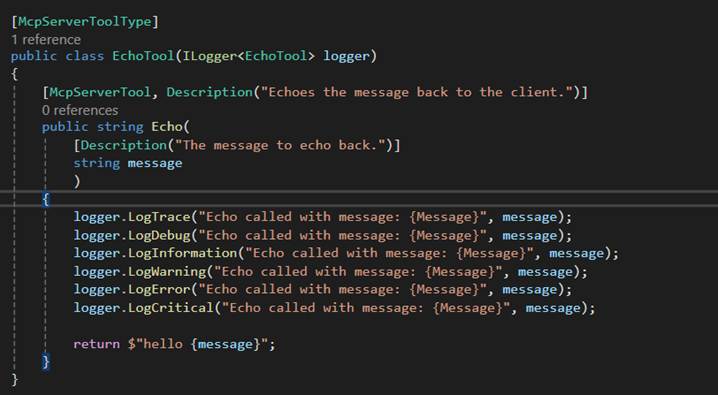
Create a class which will host your MCP Server and decorate it with the following attributes.

  • McpServerToolType attribute is applied to the class.
  • McpServerTool attribute is applied to each function that exposes a tool to the MCP Server.
  • Description attributes are important and allow you to describe to the calling MCP Client what the function does and also what the role is for each parameter that is passed into the function.

Once you have set up your MCP Server Tool and configured the Program.cs you are ready to go.

The first time I fired up the MCP Server in Visual Studio, I hit a couple of issues, which I will cover now so that you don’t have the same problem.

Firstly, I needed to redirect the ports for the MCP Server that it was listening to on this port to allow the MCP Server to listen to the requests.

You can read about how to resolve this in the Port Fun section below.

Debugging and Testing your MCP Server

Currently, the best way to test the MCP Server is by using MCP Inspector. However, I am having some challenges using MCP Inspector when testing MCP Servers that are protected by Microsoft Entra ID. This is due to an issue with how the MCP Protocol is described vs how the OAuth Protocol has been described. The MCP Protocol is stricter than the underlying OAuth protocol, and this is causing an issue because of how Entra ID works with resource parameters.

I have found that using the following to run MCP Inspector from a PowerShell script works well.

  • npx @modelcontextprotocol/inspector dotnet run

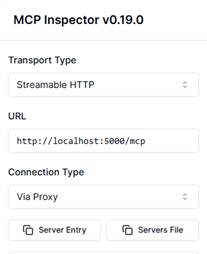
Once you have your MCP Server running in your Visual Studio debugger and your MCP Inspector running, you can test it by connecting your MCP Inspector to the /mcp endpoint provided by your MCP Server when running locally.

To connect MCP Inspector to your MCP Server, simply

  • fill in the URL, ensuring you have added the right port and /mcp on the end.
  • Click Connect
  • Click on Tools in the middle and click List Tools.
  • Your tools should load up after a few seconds, and now you can test each tool.

Deploying to the Cloud

Once you have tested your MCP Server, then you are ready to deploy it to the Cloud. You will need a few bits of Azure Infrastructure including the following:

  • Resource Group
  • Azure Container Registry
  • Azure App Service
  • Storage Account

Setting up the Azure Infrastructure

Create a new resource group in your desired location. Add the Azure Container Registry, Azure App Services and Storage Accounts.

Make note of the Azure Container Registry Connection String.

As you will need that to configure the publishing of your container from within Visual Studio.

Port Fun

It turns out that MCP Servers running on Azure Containers are not happy on the default ports provided, as they run on 8080.

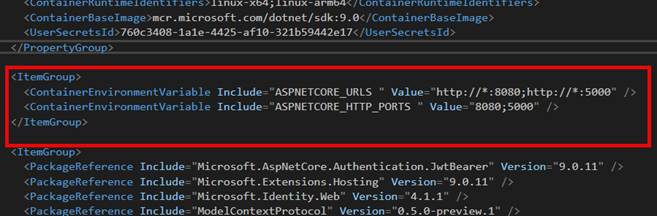
To resolve this, I used the following environment variable to change the container to use a different port. This fixed my problems.

To set up the environment variables, do the following. This can all be done within Visual Studio:

  • Open up your MCP Project file
  • Create the following environment variables in the project file
<ItemGroup>
   <ContainerEnvironmentVariable Include="ASPNETCORE_URLS " Value="http://*:8080;http://*:5000" />
   <ContainerEnvironmentVariable Include="ASPNETCORE_HTTP_PORTS " Value="8080;5000" />
 </ItemGroup>

Fun and Games with SSL and Azure Container Instances.

The original intention was to use an Azure Container Instance and access it directly. I had to come up with another plan because the process of setting up SSL within an Azure Container Instance just seemed too painful.

Change of Plan

The issue with setting up SSL and Azure Container Instances gave me some food for thought.

The challenge is how to ensure that all communication is through an encrypted channel.

When we are running our MCP Server as an Azure Container Instance, it means that we have to have SSL termination happening within the container. Which looked really painful from a couple of different sides, in particular, having to keep updating the SSL certificate when it expired was going to add some admin overhead. So, I looked at different options.

We could implement containers behind Azure API Management as an option.

Additionally, we could use Azure Functions, which was going to be my preferred option. However, at the time of setting this up, I hit an issue where, because we want to integrate MCP with Copilot Studio, we had a mismatch with protocols.

Azure Functions, at the time of writing this blog post, only supported SSE, and Copilot Studio has just deprecated SSE support.

I can see that updates have been made to the MCP Azure Functions SDK, and they now support Streamable HTTP. I am going to take a look at this next.

My other option was to use an Azure App Service to host the container. It turns out that this works well and solves my problem with SSL. At the same time, I can still use the container that I had already built and tested to host the MCP Server. Result!

So, what was involved?

Deploying MCP Server

It is possible to deploy the MCP Server from Visual Studio using the publish feature.

To deploy the container into the Azure Container Repository, do the following

  • Ensure that you have set up the Visual Studio Project settings as mentioned above.
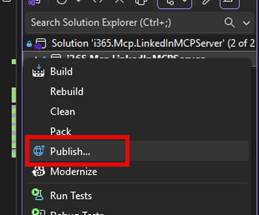
  • Right-click your Project that hosts your MCP Server
  • Choose Publish
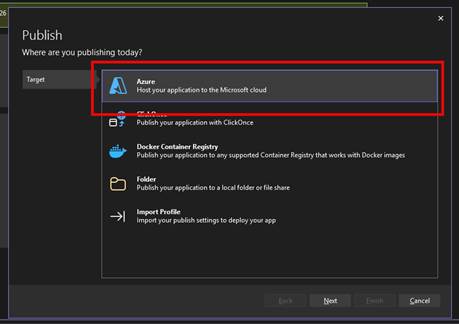
  • Click New Profile
  • Choose Azure
  • Click Next
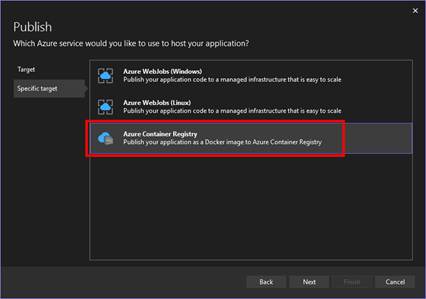
  • Choose Azure Container Registry
  • Click Next
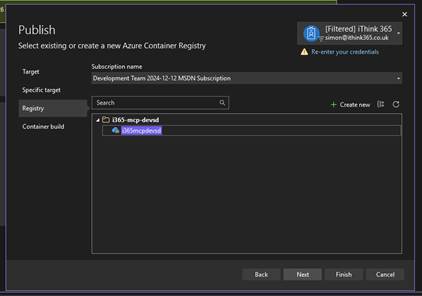
  • Choose the Azure Container Registry by selecting the Azure Subscription.
  • Choose the Azure Container Registry that you have created.
  • Click Next
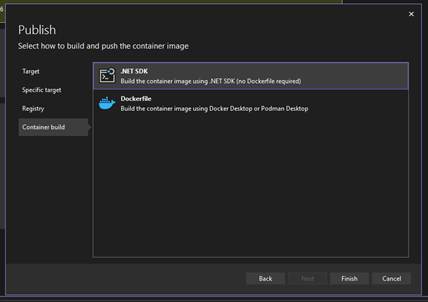
  • Choose .NET SDK (No Dockerfile required)
  • Click Finish

Now you are ready to publish your Container to the Azure Container Registry.

  • Ensure your Azure Container Registry is selected
  • Click Publish

Wait for the deployment to be completed.

Setting the MCP Server as an App Service

I created an Azure App Service within the same resource group and Azure subscription that the Azure Container Registry had been provisioned within.

To configure the Azure App Service:

  • Click on Deployment -> Deployment Centre
  • Add a Custom Container and configure the container to be loaded from the Azure Container Registry by choosing the Azure Subscription and Image.
  • Set the Port to 8080
  • Click Apply.

This will deploy the Azure Container to the Azure App Service.

Updating your MCP Server

Of course, one of the challenges is updating the MCP server because we are deploying and updating a container; we need to notify the host of the MVP Server, the App Service, that an update has taken place. I really should look at how to automate this. Maybe I will once I have published this.

The steps are to go to the Deployment Centre on the App Service and click the Sync button. Acknowledge the warning that things will be updated and let it take place.

In my experience, this takes a bit longer than you think. After 5 minutes or so, your MCP server will be up to date. I have started to tweak the description of the MCP server so that I can see when it’s updated.

If you use the MCP Inspector, you will start to experience delays in the MCP connecting, and that is the sign that it has been updated.

Updating your MCP Server with Azure DevOps Pipelines

I have found that updating through publishing via Visual Studio is a little unreliable at times. I believe that this is down to authentication issues when authenticating with the Azure Container Registry.

To resolve this, I have built a series of Azure DevOps Pipelines, which are used to build and release the MCP Server to the Azure Container Repository and then deploy to the Azure App Service.

I will document this in a separate blog article.

Linking the MCP Server to Copilot Studio

The process of hooking up and making the MCP server available to Copilot Studio is much easier than I was expecting.

First, we need to create a custom connector which will be targeted at the MCP server.

  • Browse to https://make.powerapps.com
  • Click on Custom Connectors
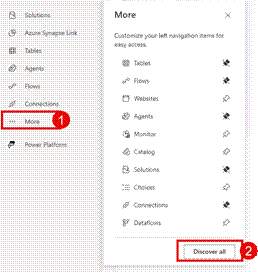
    • If you cannot see Custom Connectors, click More and then Discover All
swagger: '2.0'
info:
  title: Contoso
  description: MCP Test Specification, YAML for streamable MCP support in Copilot Studio
  version: 1.0.0
host: contoso.com
basePath: /
schemes:
  - https
paths:
  /mcp:
    post:
      summary: Contoso Lead Management Server
      x-ms-agentic-protocol: mcp-streamable-1.0
      operationId: InvokeMCP
      responses:
        '200':
          description: Success

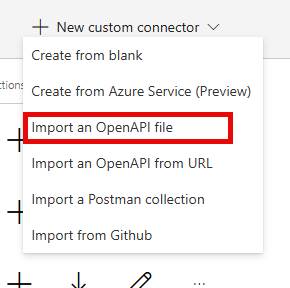
  • Click on New Custom Connector
  • Choose Import an OpenAPI File
  • Choose your mcp-server-openapi-schema.json file
  • Click Continue
  • Ensure your Host URL is correct and the same as your Azure App Service.
  • Ensure Base URL is /
  • Give the MCP Server a suitable name and description.
  • Click Security

For this MCP Server, there is no authentication, but we should have authentication, preferably with Entra ID OAuth 2.0 style authentication.

I will be putting together a guide to enable an MCP Server with authentication in a future post.

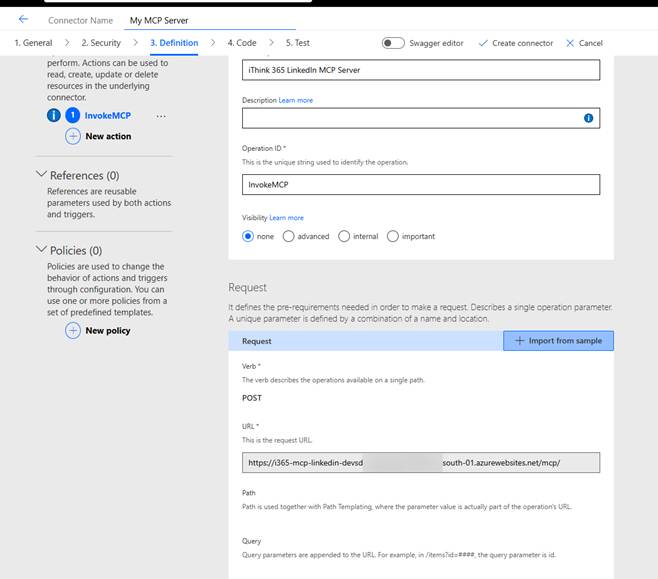
  • Click Definition
  • Update the Summary Name
  • Update the Connector Name
  • Check the URL for the Invoke MCP command

Once happy then

  • Click Create Connector

Once we have created the custom connector, we can consume it through our Copilot Studio Agent. The process of publishing the connector will create a new MCP tool within the Power Platform environment, and then this can be added to your agent.

  • Browse to your Agent
  • Click Tools
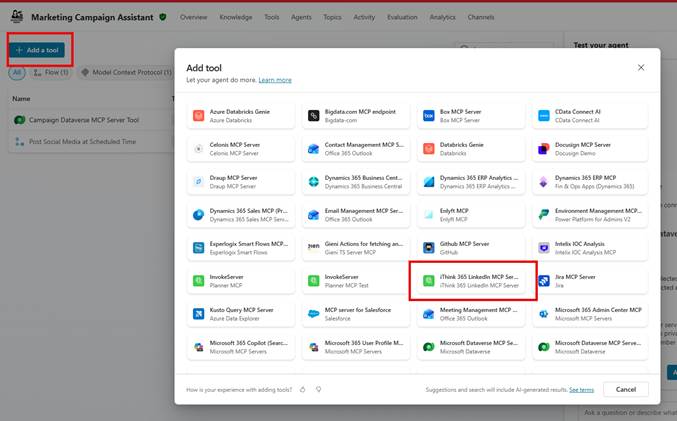
  • Click “Add a Tool”
  • Choose your MCP Server
  • You will be asked to create a connection to the MCP Server.
  • Click Add and Configure
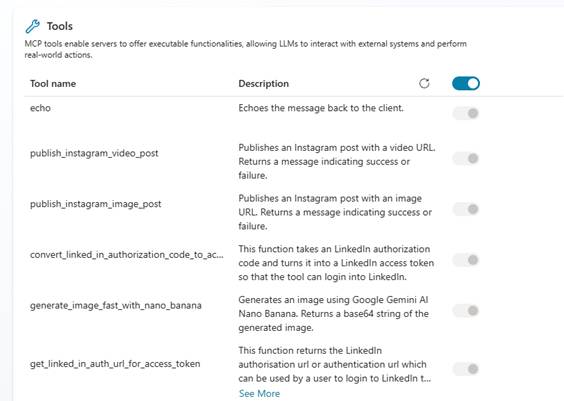
  • After a short period of time you should see a list of tools appear.
  • Now enable/disable the tools that the MCP Server provides.

Recently, there was an update so you can choose which tools are available to your Agent, so enable the ones you want and disable the ones you don’t want.

Now you can publish and test your agent.

Try it out.

Of course, you will need to make sure your agent is enabled to use the MCP tool and has orchestration enabled.

Conclusion

In this blog post, I explained how to set up an MCP server to be hosted in a secure and encrypted environment using Azure App Service. I also explained how to deploy and update the MCP Server, and finally test it and connect it up to Copilot Studio.

I’d love to hear how your MCP Server experiences are going and if you found this useful.

My plans for the next post in this series are to build and deploy an MCP server with Azure Functions, explain how we can deliver Azure Dev Ops pipelines to build and release our MCP Server container, discuss authentication so that you can secure your MCP Servers and finally, I want to look into the recent update to Declarative Agents which now support Model Context Protocol!

Check out the Microsoft Dev Blogs Post.