Unknown's avatar

Posts by Simon Doy

I am an avid SharePoint enthusiast who works as an Independent SharePoint Consultant based in Leeds, United Kingdom. I am one of the organisers of the Yorkshire SharePoint User Group in the United Kingdom. I have been designing and building SharePoint solutions since 2006.

Manage and deliver your 90-Day Action Coach Success Plan with Microsoft 365 – Part One


Introduction

If you are working with an Action Coach Business Coach like Iain Strachan as I am you will be used to the 90-day strategy planning session.

In these 90-day planning sessions, we define 4 Goals which are 3 business goals and one personal goal and build a plan on how to achieve those goals over the next 90 days.

Over the 5 years that I have been working with my coach, I have been trying different approaches to help me stay organised.

The challenges that you might have are:

  • How can I be reminded of the tasks that I need to do?
  • How can I see all the tasks that I need to complete?
  • How can I assign and track tasks that I have delegated to the rest of my team?
  • How can I record and track the metrics I have chosen to measure if the goal is complete?

In this post, I will show you some approaches I have been using to tackle these challenges. Plus tips and tricks and the approach that I take with Microsoft 365. Before I do, I need to make you aware that this post will use Microsoft 365 features from a Microsoft 365 Business Standard or Microsoft 365 E3 license and you will need licenses for Microsoft Viva. The Microsoft Viva license that you will need is the Viva Workplace Analytics license.

iThink 365 are specialists with Microsoft 365. We help organisations take a people-centric approach to achieve success with Microsoft 365 to improve their collaboration, communication, business process automation, AI approaches, management information decision making and employee experience.

Let’s get into it.

Planner – The Key to Managing Your Tasks

Firstly, Microsoft Planner is our recommendation to help you work with the tasks and actions in the business. For our scenario, we are going to use it to manage, track and remind us of the tasks that need to be completed for each of your goals.

The Planner application is available via Microsoft Teams, as shown below.
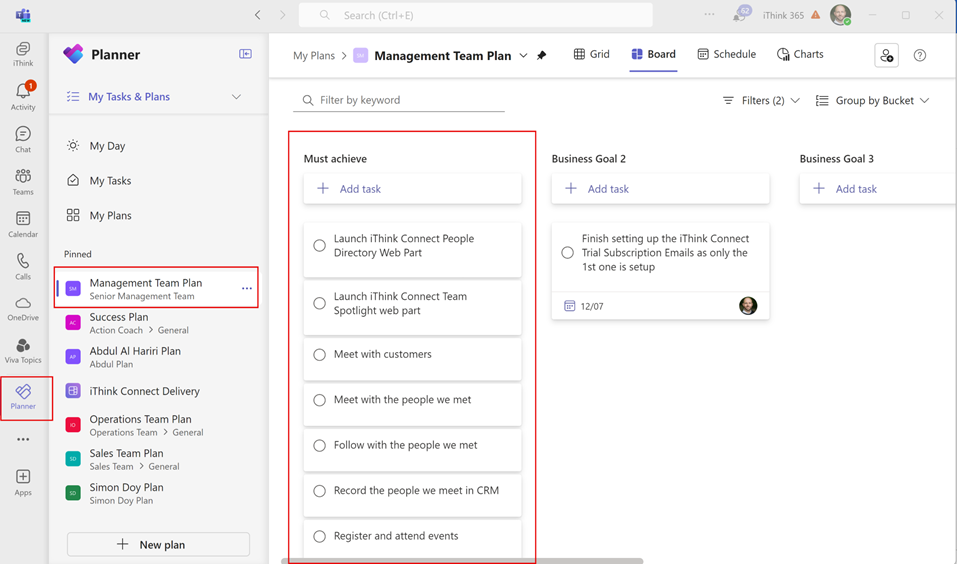
My suggestion is to create a Microsoft Team called Senior Management Team and create your Plan within that team.

You can find the following Microsoft training content to help you create your Microsoft Planner, plan.

With Planner you have a concept called Buckets which are the columns shown below, they allow you to group your tasks together.

We will use buckets to be able to manage our tasks and group them around each of the business and personal goals. Buckets are created for each goal type as shown below.

Next come tasks these are the activities that you have decided on to deliver your goal. Using the plan, these tasks are grouped under the Goal bucket.

Once you have your tasks assigned to the Goal buckets, you are well on track. Using Planner, you will be reminded when you need to do a task. Most importantly these tasks are visible within several Microsoft 365 applications including Microsoft To Do, Planner and Outlook. This will help to keep you pushing to meet your goal, as the tasks that you need to complete will be a consistent reminder.

So, we have a way to track and be reminded of the things we said that we needed to do to meet our goals. But how do we know we have met them?

Well, this is where we need to talk about Viva Goals! But let’s delve into Viva Goals in the next post.

Conclusion

In this post, we started talking about how you can use Microsoft 365 to track, manage and measure your 90-day Strategy Planning work.

Microsoft Planner was introduced as a way to help you manage, track and be reminded of the activities that need to occur.

In the next post, we will delve into how we measure your goals, track the measurement and bring it all together into one dashboard for you to track your progress to deliver your 90-day plan


Working with Copilot Studio Dynamic Chaining Plug-in Actions DateTime Parameters


Introduction

I have been spending a lot of time recently working with the Copilot Studio’s Dynamic Chaining feature using actions and plugins.

If you have not heard of the feature have a read of this Microsoft article, Use Plugin Actions in Copilot Studio (Preview)

In a nutshell, the incredibly powerful feature of dynamic chaining is that the AI can decide based on descriptions provided by the Plug-Ins which ones they should call based on the user’s request via the prompt.

The key to a successful plug-in is the way that you describe the plugin function. It needs to be in a way that the AI can understand when it should try and use that plugin. Another part of writing successful dynamic chaining plugins is spending time when describing the plugin input and output parameters. It is this aspect that I wanted to talk about today.

In this article, I wanted to show some of the things I have discovered when working with date time parameters.

In my example, we have a plugin which is running a Power Automate Flow. The ability to call a Power Automate Flow from a plugin is awesome. It allows us all sorts of freedom including allowing us to connect with different systems and make them available to the Copilot. However, one of the challenges is how we ensure that the parameters being passed into the Flow are of the right data type and format.

Let’s think about an example where we have a Power Automate that connects to a Dataverse-backed system which holds the people who are on leave. The plug-in returns an array of people who have booked leave during those two dates. The flow is set to take two parameters, StartDate and EndDate. Both parameters are strangely of type string but this works well and we can work with that in Power Automate nicely.

Our Power Automate then does a look-up against Dataverse and filters the results using the Start Date and End Date parameters.

We hook up an Action (Plugin) which calls the Flow and you try it out with the following prompt.

“I am looking to book a holiday between 1st May 2024 and 14th May 2024, is anyone else on holiday?”.

The chatbot fires up and calls the plugin as it has worked out that it needs to call our “Get people who are holiday” plugin. However, it fails because the format of the date is not right. It is expecting a date like 2024-05-01 or yyyy-mm-dd.

The error we get is this:

So, the question is how can we fix this? Well we have a couple of choices, we could put some more logic in the Flow to parse the string and turn it into the right format. We might use a parseDateTime() function but unfortunately that suffers the same fate as we had when the Flow is called and the format is not right for it to parse. Instead we could use a couple of AI Prompts using Create text with GPT and the AI Extraction. We tell the prompts to parse our Start Date and End Date and format the result as yyyy-mm-dd.

How does that work for us?

Well it works like a dream the AI prompt will format whatever is passed to us, provided it is a date into the right format and we get the results back.

Awesome!

However, what about if we wanted to do something a bit cooler and have a prompt like this.

“Is anyone on holiday in May?”.

Unfortunately, this does not work, the Plugin does not know what date to put in as the start date and end date from this prompt. It needs a bit of help.

So, what would happen if we changed the description of the parameters, Start Date and End Date in the plugin?

This was updated from

“This provides the start date for the holiday, leave or vacation.”

to

“This provides the start date for the holiday, leave or vacation. This could be as a date or month, if it is a month then it should be the first day of the month of the current year such as 1st May 2024.”

What effect does that have?

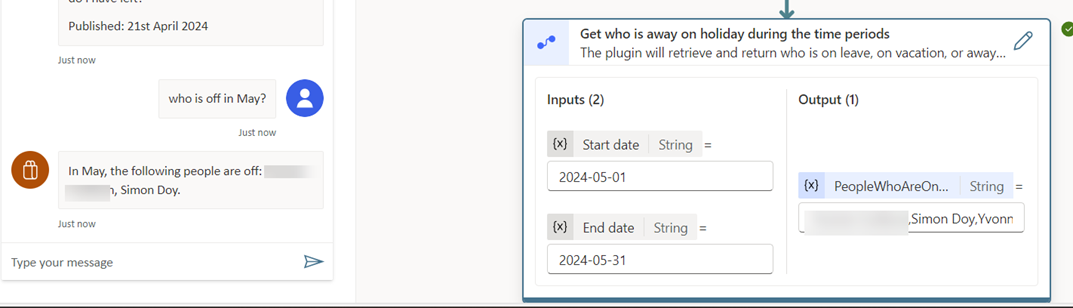
Now suddenly we can ask the question “Who is off in May?”.

The plugin would get the parameters 1st May 2024 and 31st May 2024 used for Start Date and End Date respectively.

It is better than that, we can now say “Is anyone on holiday in Q1 2024?”

The plugin would then set the parameters to 1st January 2024 and 31st March 2024.

How cool is that?

During my experiments, I wondered why we might not need the two steps in Power Automate to convert the Start Date and End Dates into the right date-time format. Instead, what about if we use the Plugin Parameter description to do that work.

So if we update the prompt to tell it to use the format “yyyy-mm-dd” and then try it.

This worked like a charm and now the prompts were working and converting the dates into the right format and I could simplify the Flow.

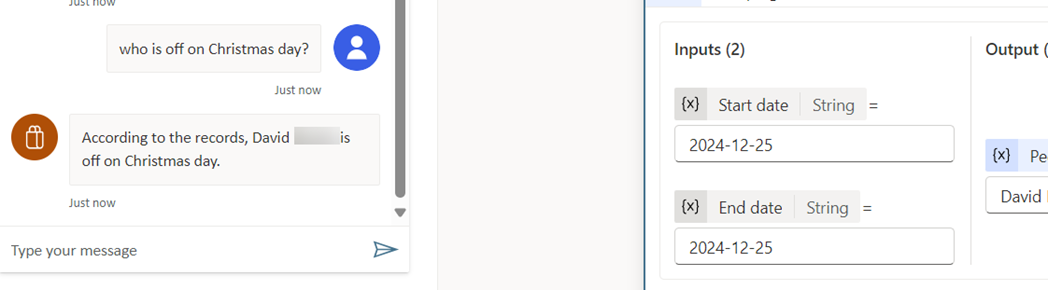
What is more, I could then start asking questions like “Is anyone off on Christmas Day?” or “Is anyone off on Boxing Day?” or “Is anyone off on Star Wars Day?”

The Flow would be given the right parameters and we would see who is off.

Conclusion

So there we have it, with a bit of experimentation and thinking about the use cases there is a lot of power in the Plugin Parameter description. With the description we can get the system to do the hard work of formatting data into the structure that you need.

I hope that you found this useful and let us know how you get on.