


Introduction
This article highlights some gotchas that I have hit when building a Copilot Studio with a Custom Engine Copilto using GPT-4o. The aim is to help you solve these problems if you have similar issues.
So, firstly what are we talking about when we talk about Custom Engine Copilots?
Well, Copilot Studio can be configured to use an external hosted AI model for example using Azure AI Services and GPT-4o. This allows us to use a more powerful or more suitable language model such as GPT-4o instead of the out-of-the-box LLM that Microsoft currently provide.
The benefits are better reasoning with better results. Our experience with our customers has shown some great results when using GPT-4o.
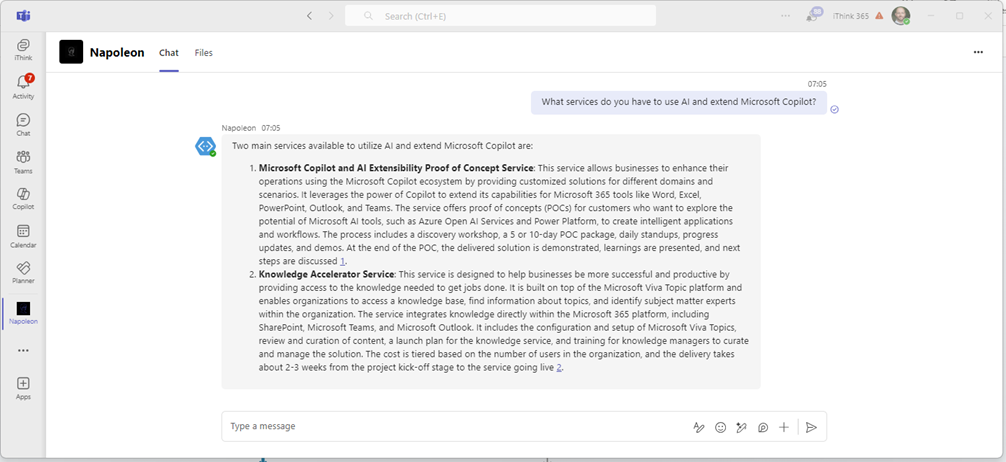
The way of using a custom engine Copilot is using the Generative Answers capability within Copilot Studio.
However, there are some gotchas when using these more complex models and I wanted to document them here to save you working out what the issue is.
Gotcha 1: Generative Answers returns no knowledge found
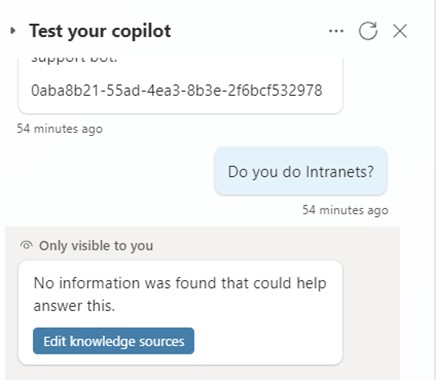
So, we have seen that if something goes wrong when you using Open AI Services then you get a no knowledge found.
You can try this out using the Test Your Copilot feature for your Copilot with Copilot Studio.
I will be honest this took a while to find out what the issue was but by using Azure Open AI Services https://oai.azure.com/ you can test the model to make sure it is working with your data.
We kept getting issues with Generative Answers saying there was no knowledge found. In the end, it turned out to be due to a trailing slash missing for the Azure AI Search endpoint.
So check your Open AI connection settings, make sure that you have a trailing slash on the Azure AI Search / Cognitive Search endpoint URL.
i.e https://azureaisearch.search.windows.net/
and not https://azureaisearch.search.windows.net

We have also seen the issue with your model being throttled and the result is that you get the same no information was found that could help answer this.
When you try the same prompt from Azure Open AI Services you get this error message, Server responded with status 429, the rate limit is exceeded.

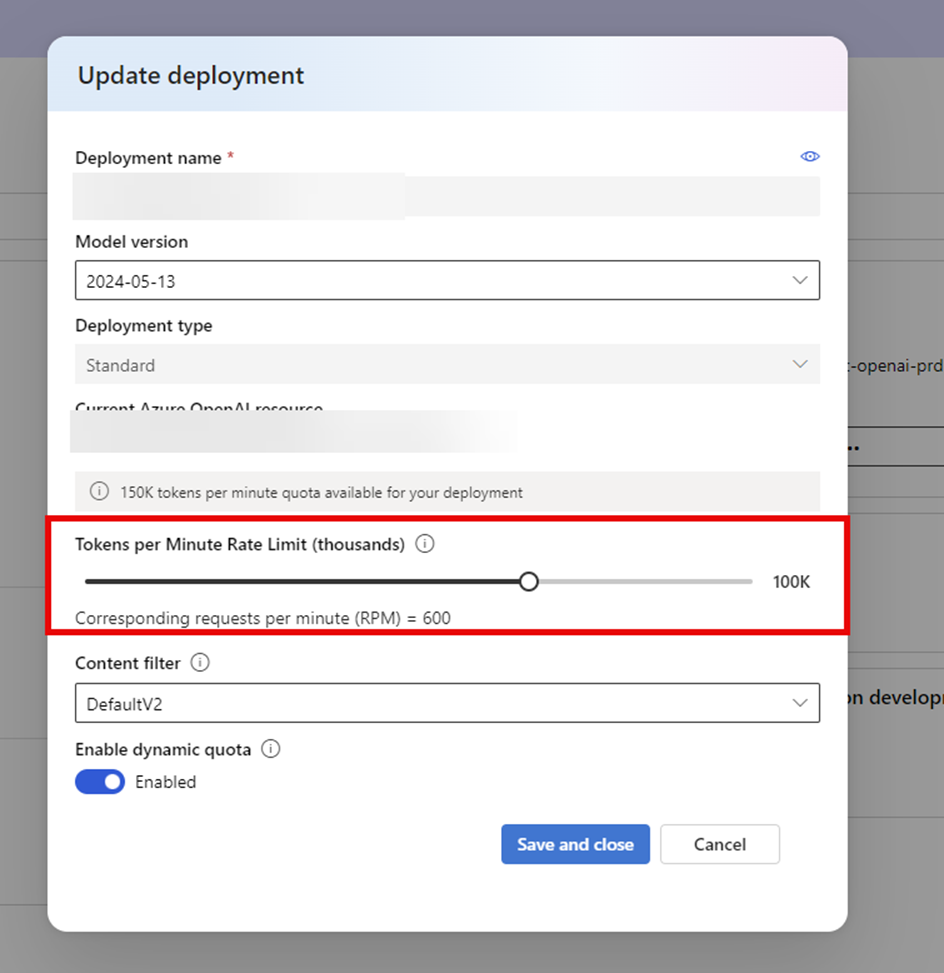
Make sure you have increased the rate limit to cover the number of tokens that need to be processed.
You can do this using the Azure Open AI Studio by going to the Deployments, choosing your model and then editing the model settings and increasing the Tokens Per Minute Rate Limit. For testing we are setting this to 100K but for Production, you are likely to need to increase further.
Gotcha 2: Generative Answers returns answers but they are not that great.
This issue is subtle and is unfortunately hidden by the Generative Answers. The experience that we were getting was that using Azure Open AI Services we got really good detailed responses back. However, when we tried the same prompt in Copilot Studio we got very simple responses back which were nowhere as good as those from Azure Open AI Services.
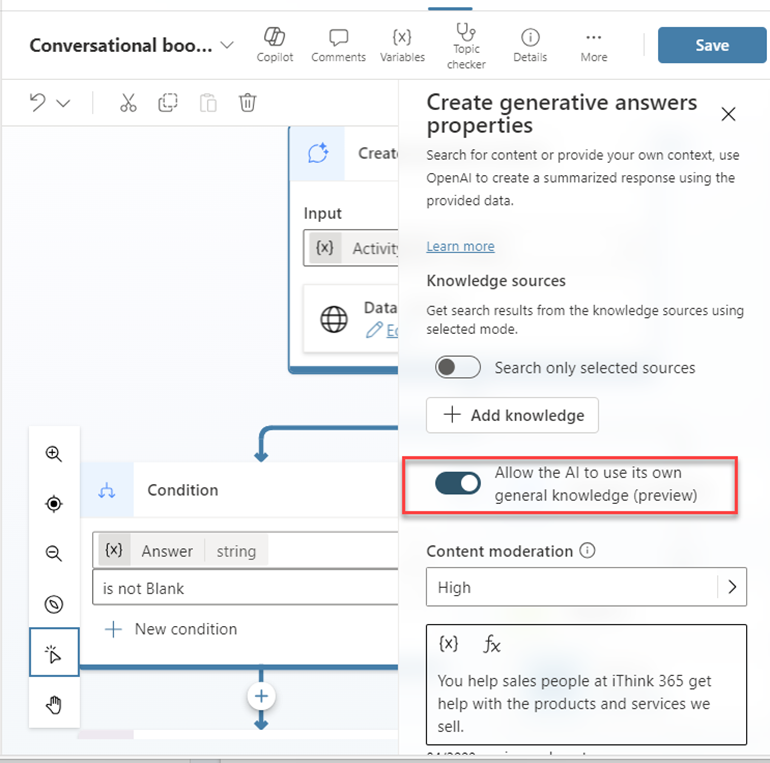
The issue turned out to be related to Gotcha 1 where we were getting no results back from the Open AI model and we had this option switched on in the Generative Answers action. So then the Generative Answers would use the knowledge that it has in its model.
So we would get a response like this one
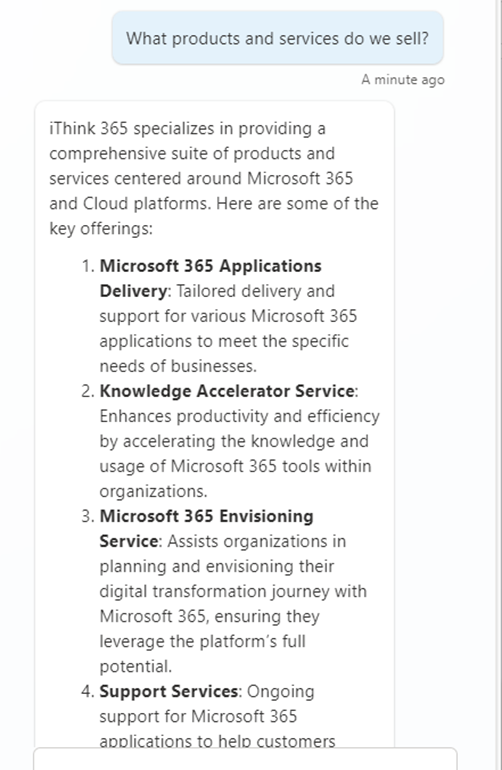
Which is not bad but not as good as the GPT-4o version which is shown below.
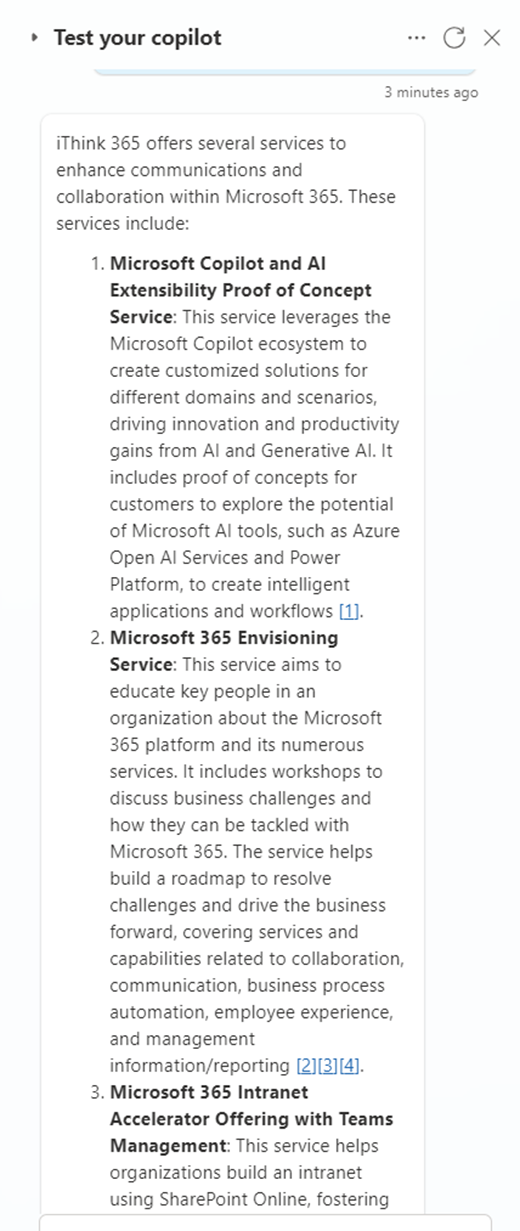
So the fix is to switch off the “Allow the AI to use its own general knowledge” option.
Gotcha 3: Generative Answers sometimes return great answers and sometimes errors out.
So this issue seems to occur with GPT-4o models but not GPT-4 based models and I suspect that this is down to the amount of detail in the answers coming from the model.
When using Generative Answers and Copilot Studio you can return the information back to the user in two ways:
- Ask Generative Answers to send a message to the user.
- Take the response and assign it to a variable.
These options can be found in the Advanced section of the action.
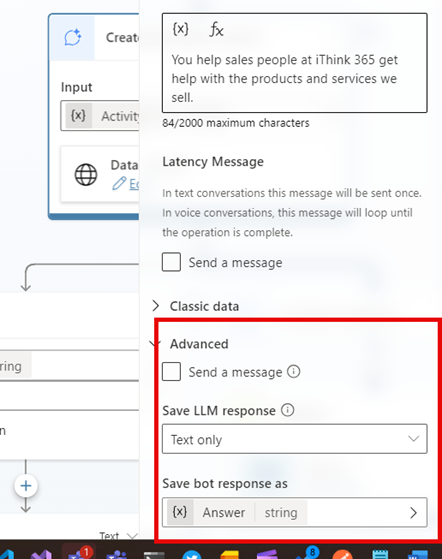
If you ask for generative answers to send a message then you sometimes get errors being reported.
Instead do the following:
- Assign the response from the model into a variable, use Text Only.
- Check to see if a response is returned and then if it is write out the message using a Send a message activity.
See the following screenshot:
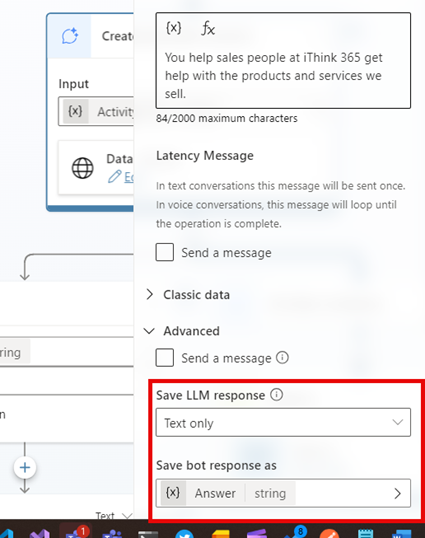
Once you have assigned the LLM response to the variable then add the condition and do the following:
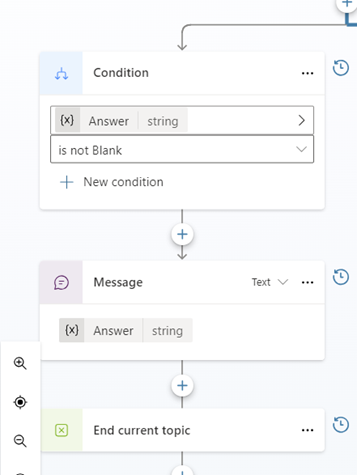
You will find the responses much more reliable.
Conclusion
In this blog post, I explain some of the issues/gotchas that I have seen when building Custom Engine Copilots using GPT-4o. We covered some of the issues that I have seen and provided ways to solve them.
I hope that helps!
if you need a hand then get in touch with us at iThink 365, https://www.ithink365.co.uk.

 Doy's Microsoft 365 and Azure Dev Blog