This image is an illustration of a leader sharing some information with their team.

Improving my approach: Using AI to Documenting Solution Designs for Development Teams


As we prepare for the next release of SmartFlo, I wanted to share a way that I use SmartFlo to help me get things done.

It has always been interesting and a challenge to be the person who leads the discussion with the customer and what they are looking for in terms of having a business process transformed or a system built for them. The most important part following the discussion is communicating with the development team on approach, pitfalls, and ideas. This often falls to the solution architect or business owner, who has to effectively communicate what they are looking for, design approaches, etc, to the development teams.

In this role, I explain what it is that we are building and why. I will pretty much always do some research, provide guidance as to how to do things, and what to watch out for so that the team are going to be taking a successful approach and hopefully not get blocked.

As part of this process, I need to explain how and the expectations of what the customer wants. Additionally, there are often a lot of other factors which make up what different stakeholders are looking for, and those will have been discussed with the pre-sales team. It is important that those discussion points are handed over successfully so that the delivery teams build the right thing.

Nine times out of ten, it comes down to communication and ensuring that the design and intention is clearly communicated and, most importantly, written down.

This allows the Dev team to ingest the design and approach in their own time and in a repeatable way.

Recently, I have been using SmartFlo to help me capture this information in a consistent and well-structured way.

The SmartFlo template that I have created has the following sections to capture the important information, such as security considerations, number of users, data size, areas of risk, concerns and more.
So why don’t we delve into what the template looks like and the process of creating this content?

To create the document, I simply have a meeting with myself and/or another member of the team, and we talk through the solution.

We talk through how we expect it to be built. We include what is being built and why. We talk about pitfalls and areas of concern. We really delve into the details so we can get as much information recorded in that meeting.

I then finish the meeting and run SmartFlo. This will create the document, which is then reviewed by me. I make any necessary updates, and then it’s ready to share with the team for feedback.

Here is an example of the output
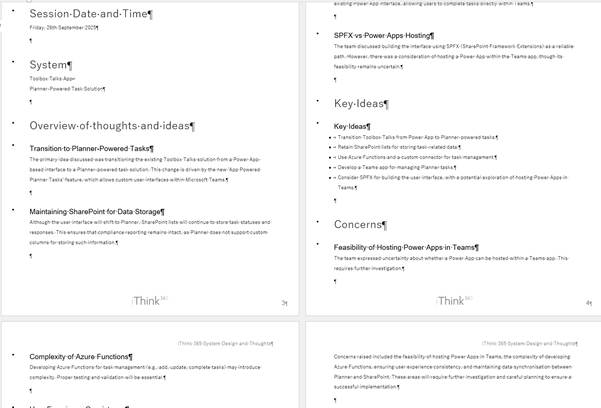
Over time of using this process, the template has been refined further to help pick out areas which need their own section. Such as authentication or what licenses are required.

SmartFlo has dramatically reduced the time taken to write these documents, but it has also helped to improve the quality and consistency of what is produced.

Now with SmartFlo, what used to take 90 -120 minutes to write now takes 20-30 minutes!

Creating the template

Creating the SmartFlo template is straightforward. We take our standard company-branded template and create some sections to record the key information.

You can see this below.
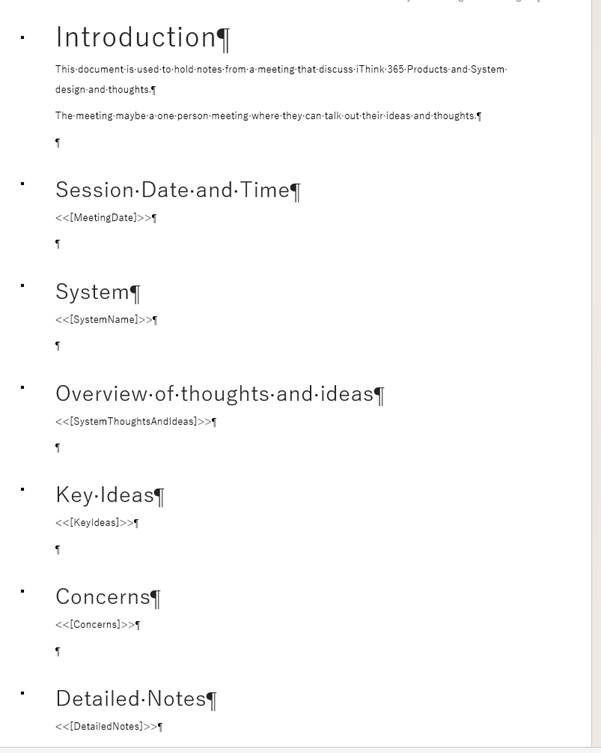
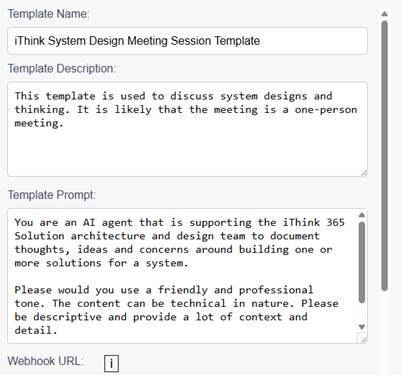
We upload the template into SmartFlo and then use the following to describe the template.
For each of the sections, we tell SmartFlo how to fill out the template.
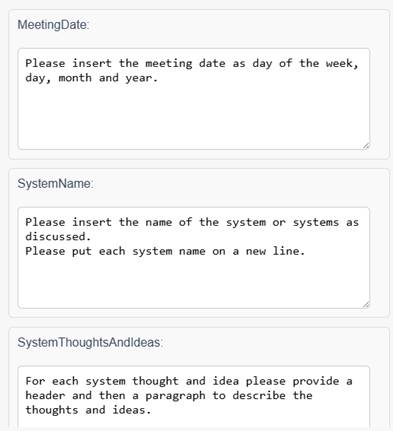
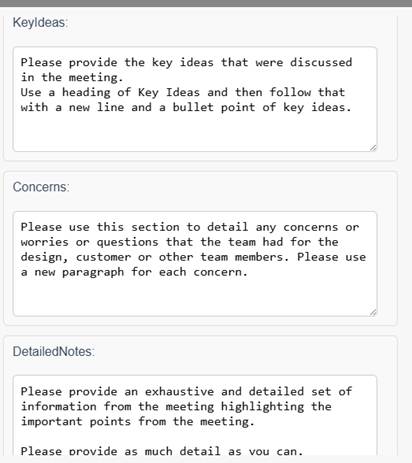
That is it, there is some good detail in the template and getting that right can take a couple of attempts, but it’s incredibly quick and easy to get one of these templates out.

What do you think?

I would love for you to benefit from tools such as this and improve how you get things done. To help, you can install and try out SmartFlo, by getting started and signing up for a 7-day trial.

Please let us know what you think!


A user asking questions of a chat bot

My Experiences with Copilot Studio – Gen AI Agents Not Behaving as Expected? Check Your Question’s Settings


Introduction

At iThink 365, we are seeing an increase in the number of project where we are delivering Copilot Agents that are built on Microsoft 365 and Copilot Studio for our customers.

Each time we do one, we learn more and pick up tips and tricks on the way.

In this post, I wanted to share some learnings I have had as we try and do agents which are more agentic and use the orchestration features. I wanted to go through a scenario which I am sure you will have had, and some tips and tricks to help you get some control around.

Copilot Studio is going through a period of rapid change and development. New features are being rolled out each week, and it is constantly changing. Sometimes this leads us to think that something is buggy when in fact it is misunderstanding with how the platform can be configured.

In this blog post, I wanted to share an example of this.

The example is when you use the Question activity to get a response from the user.

One of the behaviours we saw was that the user would choose an option or type a response. On processing of the response, the agent would rather than continue in the same topic, it would switch and execute another topic (https://learn.microsoft.com/en-us/microsoft-copilot-studio/guidance/topics-overview). What the heck, why was it doing that?

Well, it turns out that the Copilot Studio’s Question activity has a plethora of settings. These settings allow you to control the processing logic, so let’s delve into those settings.

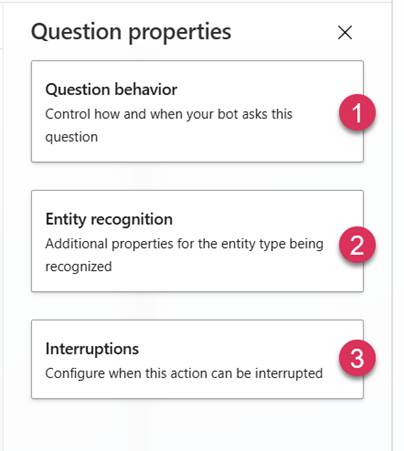
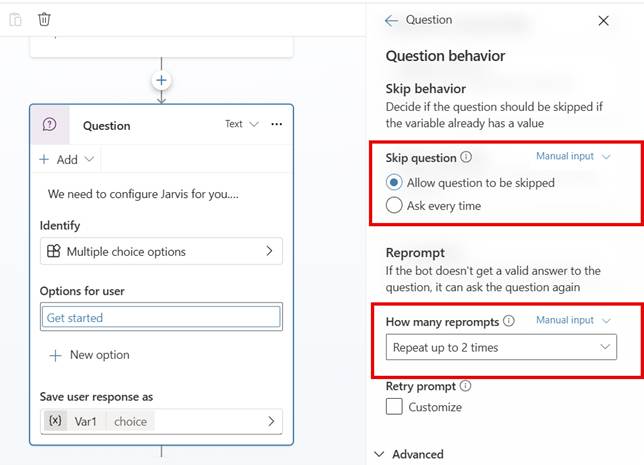
The first set of options is the “Question behaviour”, which controls how the question is processed.

For example:

  • Can a user skip this question?
  • Does the agent enforce the question, and if so, how many times does it try?

The third option is how the question treats interruptions.

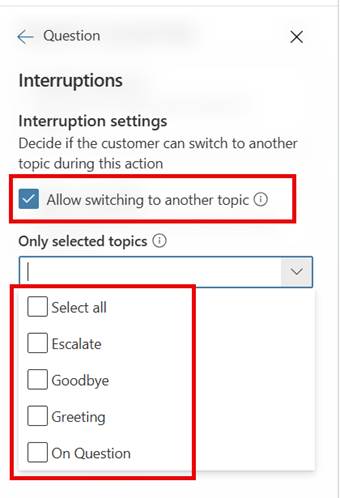
The interruption was the secret to the problem we were seeing, more on that shortly. This set of options allows you to control whether a user can switch to a different topic and, if it can switch, which topic(s) the Agent can switch to.

The reasoning is sound, if you are a user, it may be pretty frustrating to have to go down a particular route and set of questions before you can get the answer you are looking for.

However, as a developer, there will be times when you want to ensure that the user cannot deviate from the process.

So, coming back to our problem, we were seeing that the user’s response was being seen by the Agent as a match for one of the other topics. The user experience was terrible because now they were taken off down a path that was not the expected path, and certainly did not end up with the result and experience that we wanted them to have.

The solution was to uncheck “Allow switching to another topic”, and the issue stopped happening.

Now, what if you did want them to be able to switch to another topic, but you wanted to restrict which topics they can switch to. Well, in order to do that, you can check “Allow switching to another topic” and then select the topics they can switch to.

You may think, how do we ensure that the user experience is what we want it to be. This is only validated via testing with real users. Often we have seen users use language or terms which we were not aware of and then topics are not triggered as expected.

So make sure you test this piece with real users via user acceptance testing before you launch. By doing this, you can ensure the configuration of the question and topics is right. Then the user gets the experience of picking up / switching to the topics with the right content.

Conclusion

I hope you uncover this post in your time of need, and it helps you uncover the plethora of options that the Question activity has.

Please let us know if you have any question or if it helped you using the comments below and thanks for reading.