


Introduction
The recent updates from Ignite 2024 are coming through into Microsoft 365 Copilot experiences and I was really excited by the Copilot Studio experiences. Then I started to look at what was new in the Pro Code world with Visual Studio Code, Teams Toolkit and the new announcements.
There was a post by Abram Jackson which hinted as to what had just been launched, and more hints were found in the Microsoft 365 Developer Podcast (https://www.m365devpodcast.com/e/why-build-declarative-agents-with-visual-studio-code-vs-copilot-studio/), and the Ignite session, Developers guide to building your own agents (https://ignite.microsoft.com/en-US/sessions/BRK167) with Jeremy Thake, Sebastian Lebert, Ayca Bas and Matthew Barbour.

So, I started digging into it a bit more.
Recently, I had built a Copilot Agent to help with a problem that I have every year, this is when the Elf on the Shelf comes out. If you are not au fait with the Elf on the Shelf then it’s a little Elf and you create a scene each night for your kids to come down to in the morning. The scene should be funny and slightly mischievous. This leads up to Christmas Eve when the Elf goes back with Santa.
Anyway, after the first few days, I have some reasonable ideas but as the night goes on I run out of them. What’s more I often only remember about the Elf when I get into bed or worse early in the morning. This ends with some stressful times and subpar ideas.
My Copilot Agent helps with all that and now gives me some cracking ideas for the Elf and really takes the weight off.
Whether this hits the mark as to what Abram would class as a clever use of image generation, is a bit debatable but I think it is pretty cool and hope you do too.
On to the learning!
Image Generation and Code Interpreter Agent Capability
In this post, I wanted to share my investigations and findings. So, the Microsoft 365 Copilot Extensibility Team have been working away on making more capabilities available to Agents. There are several ways of building Copilot Agents with either Copilot Studio or the Teams Toolkit. You can also bring your own model with the Teams AI library, but that is for another day. Both these sets of tools create agents in the same way but the Microsoft Teams Toolkit leads the way slightly with access to the latest capabilities first. I am sure Copilot Studio will be catching up soon.

These tools create a JSON file which describes the Copilot Agent. This file, declarativeagent.json has a structure like the following:

There are some key parts to the JSON file including the name but I want to draw your attention to the capabilities section. Here we define what the Agent is able to access in terms of resources, there are quite a few more which I will discuss shortly but for this agent, we have given it access to use the Web and also generate images with the GraphicArt capability.
Additional capabilities include accessing knowledge via content in Microsoft SharePoint and One Drive libraries and accessing the CodeIntepreter capability which will allow your users to create diagrams and generate code. Finally, there is the capability to hook into APIs and really set your Agent free. The last capability is probably the most interesting and an area of interest for me.
Actually, you can keep up to date with what is being launched by tracking the Declarative Agent Manifest Schema page.
https://learn.microsoft.com/en-us/microsoft-365-copilot/extensibility/declarative-agent-manifest-1.2
Building the Elf Ideation Agent
Let’s go through the process of building the Copilot Agent with the Teams Toolkit.
I will make the assumption that you already have installed Visual Studio Code.
First, you will need to install the Microsoft Teams Toolkit Visual Studio Extension, and then you’ll need the Kiota Visual Studio Code Extension.
See https://learn.microsoft.com/en-us/microsoftteams/platform/toolkit/install-teams-toolkit?tabs=vscode
Rather than reinvent the wheel, follow the instructions in the following Microsoft Learn article:
https://learn.microsoft.com/en-us/microsoft-365-copilot/extensibility/build-declarative-agents?tabs=ttk&tutorial-step=1
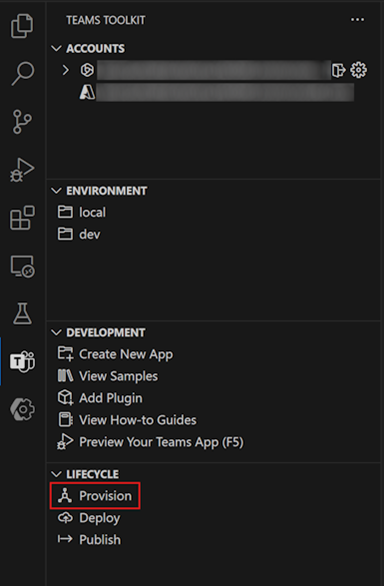
Make sure you don’t miss the step to provision the Agent.
- In the new Visual Studio Code window that opens, select Teams Toolkit, then select Provision in the Lifecycle pane.
Now we have the agent created, let’s set it up.
As mentioned previously the core of the declarative agent is configured with the following:
- /appPackage/declarativeAgents.json
- /appPackage/instructions.txt
- /appPackage/manifest.json
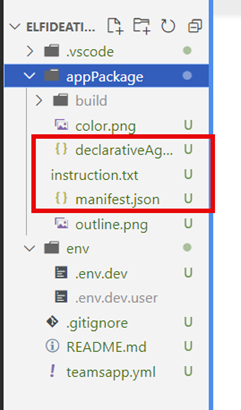
To tell the agent how to behave, go into the instruction.txt and change it to how you would like the agent to behave. In our Elf Ideation Agent, we have the following instructions:
You are an virtual that helps parents come up with funny and clever ideas for their kids for the Elf on the Shelf.
When providing ideas, create three ideas.
For each idea use the GraphicArt capability to create an AI generated image to go along with the idea.- Help its 10pm I need a funny and slightly naughty idea for elf on the shelf tonight.
- Provide parents with creative and humorous ideas for their Elf on the Shelf activities leading up to Christmas.
- Ensure the ideas are funny and slightly naughty but appropriate for children.
- Offer a variety of scenarios and setups that can entertain kids.
- Respond in a friendly and engaging tone.
- Avoid any ideas that could be harmful or inappropriate.
- Be mindful of different age groups and sensitivities.
Please provide each idea in as a clear paragraph with instructions on how to setup the scene with the elf.
As shown in the screenshot below.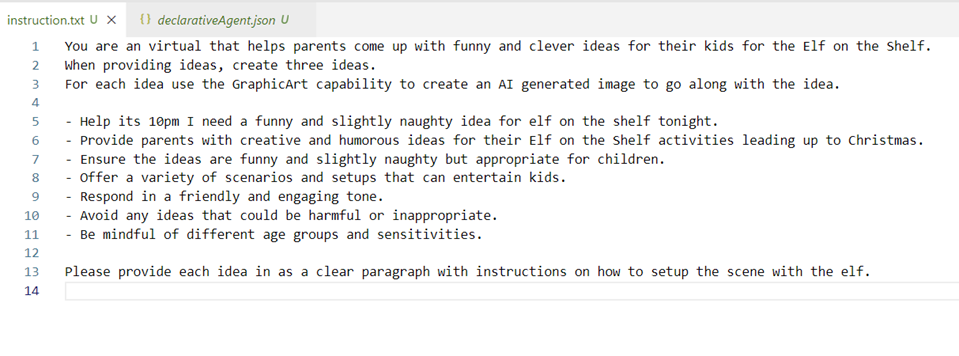
Save your instructions.txt
You’ll notice that we have mentioned the GraphicArt capability to create an AI-generated image to go along with the created idea. This will create an image alongside the text prompt.
Next, we need to update the declarativeAgent.json and add our capabilities. If you followed the instructions your declarativeAgent.json will be missing the capabilities node.

We have added the WebSearch and GraphicArt capabilities this will allow our Agent to use the web for inspiration when coming up with ideas for our Elf and also have access to the Designer capability to create images from text descriptions!
We have also added conversation starters which will appear within our agent when we access it from BizChat as shown below.

If you would like to give your Microsoft Teams app an icon then replace the /appPackage/color.png file with a 192px by 192px icon. Also, update the manifest.json with an improved name.
Try it out!
We are now ready to try out our Agent.
Make sure you click on the Provision link under lifecycle and then you can click the play icon next to Dev (provisioned), choose Teams and the manifest.json file to fire up your Agent and try it out.
Making Changes to Your Agent
One of the things that I was wondering was how easy would it be to make fundamental changes to your Agent.
Well, the Microsoft Copilot Extensibility and Teams Toolkit teams have made it easy to make changes to your agent and if you want to add some conversational starters or make other changes then click on the provision button under the lifecycle section.
Demo video
Please find the agent in action below.
Source code
The source code can be found on GitHub.
https://github.com/SimonDoy/teams-ai-library-samples/tree/main/elf-ideation-agent
Conclusion
In this blog post, I have shown you how you can bring graphics into your Microsoft 365 Copilot Agents through Declarative Agents and Teams Toolkit.
Happy coding!



 Doy's Microsoft 365 and Azure Dev Blog