Unknown's avatar

Posts by Simon Doy

I am an avid SharePoint enthusiast who works as an Independent SharePoint Consultant based in Leeds, United Kingdom. I am one of the organisers of the Yorkshire SharePoint User Group in the United Kingdom. I have been designing and building SharePoint solutions since 2006.
Photorealistic executive boardroom at dusk, floor-to-ceiling glass overlooking a modern city skyline, two senior business leaders standing in front of a massive digital operations wall displaying hundreds of interconnected AI agents spreading across departments, glowing network visualisation showing marketing, sales, finance, HR and operations agents multiplying rapidly across the organisation. On the left side of the screen, innovation metrics, automation workflows and productivity indicators glow in cool blue tones. On the right side, financial dashboards show rising consumption, increasing costs, budget forecasts and resource utilisation in subtle red and amber tones. The executives are studying the display together, one focused on growth and innovation, the other focused on financial sustainability. The giant screen dominates the scene. The atmosphere feels like a critical strategic discussion about the future of AI. Premium enterprise technology aesthetic, Microsoft-inspired design language, cinematic lighting, blue and purple AI glow, ultra realistic corporate photography, shallow depth of field, highly detailed, Fortune 500 boardroom, dramatic but professional, magazine cover quality, visual storytelling, no cartoon style, no empty space, no logos, no watermarks, no stock photo appearance, sophisticated and believable.

Do We Need AI FinOps for Microsoft Copilot?


This article has been written with the aid of Microsoft Copilot.

Over the last couple of years, we’ve been spending a lot of time building agents.

Some are simple. Some are quite sophisticated. Some are internal experiments and some are helping solve real business problems. Like many people working in this space, I’m trying to understand where AI is heading and, more importantly, what organisations need to be thinking about today.

One thing has started to become apparent.

Microsoft are moving from a world of fixed AI licensing to a world of AI consumption.

This is a big change; I think it could become one of the biggest changes organisations need to prepare for over the next few months.

And it has got me thinking more about the rise of AI FinOps and what we can do to help our customers.

We’ve Seen This Before

When cloud computing first became mainstream, many organisations struggled to adapt.

Traditionally, IT was relatively predictable. You bought servers. You bought software. You purchased licences. The costs were generally known upfront.

Cloud services changed this completely. Suddenly, organisations were paying for what they consumed: storage, compute, network traffic and databases.

The technology teams loved the flexibility. Finance teams sometimes had a different perspective when the invoices arrived.

This is where FinOps emerged.

FinOps helped organisations understand what they were consuming, why they were consuming it and whether they were getting value for the money that was being spent.

The goal was never simply to reduce costs. The goal was to maximise value.

I can’t help thinking that AI is about to follow a very similar path.

Why Copilot Changes the Conversation

Historically, most Microsoft 365 discussions have centred around user licensing.

How many users do we need? Who should get a licence? Have we assigned the licences correctly?

These are all sensible questions.

However, AI introduces another layer.

As Microsoft continues to expand the capabilities of Copilot, Copilot Studio, AI-powered development tools and agent experiences, we’re increasingly seeing consumption-based models emerge through Copilot Credits.

That changes the conversation.

The question is no longer simply: How many Copilot licences do we own?

It starts becoming: How much AI are we consuming and what value are we getting from it?

Those are very different questions.

What Is AI FinOps?

I suspect AI FinOps will eventually become a specialised extension of traditional FinOps.

Not because AI is completely different, but because the things we need to measure are different.

Instead of virtual machines and storage accounts, organisations may find themselves tracking things such as:

  • Agent execution
  • AI reasoning
  • Copilot Credit consumption
  • AI-powered processes
  • Usage patterns
  • Business outcomes
  • Value generated by AI workloads

Ultimately, the challenge remains the same.

How do we ensure we’re getting value from the resources we’re consuming?

The Challenge With Agents

One thing I’ve noticed whilst building agents is that we often focus on capability first.

Can the agent do the job? Can it solve the problem? Can it complete the user’s request?

Those are absolutely the right questions when you’re learning and experimenting.

However, once agents move from experimentation into production, another question starts becoming important.

Can the agent solve the problem efficiently?

For example, imagine a user asks an agent to build a solution.

A very capable agent might analyse requirements, design a data model, build an application, create workflows, produce documentation, generate reports and configure automation.

On the surface, this sounds fantastic.

However, what has happened behind the scenes? How many reasoning cycles did it perform? How many searches did it execute? How many tools did it invoke? Did it arrive at the answer directly or explore five different approaches before choosing one?

The user may only see the final result. The organisation may eventually care about the journey taken to get there.

Why Agent Optimisation Matters

This is where things start to get interesting, **well interesting to me**.

Historically, optimisation has been difficult.

A lot of the intelligence in an agent was buried inside prompts and instructions. As agents became more sophisticated, prompts became longer, instructions became more detailed, and workflows became more complex.

One of the challenges was simply giving the AI enough context to make good decisions.

What I’m starting to see from recent updates is a move towards architectures that make optimisation easier.

The latest developments in agents, orchestration and harness capabilities are creating opportunities to shape how agents reason and how they execute tasks.

That might not sound particularly exciting. But from an AI FinOps perspective, it could be hugely important.

A good optimisation strategy isn’t necessarily about using less AI. It’s about using AI more effectively.

An Interesting Example: Work IQ

One capability that I think will become incredibly important is Work IQ. This is Microsoft’s intelligence layer for accessing your work context.

Traditionally, AI spends a lot of effort trying to understand context.

Who should I talk to? What project is this related to? Where is the information? Which document is relevant? Which team owns this?

That investigative work has a cost.

The more effort required to find context, the more effort the AI has to expend before it can begin solving the actual problem.

What I find interesting about Work IQ is that it helps the AI understand the organisational environment more effectively.

If the AI can find the right people, projects, conversations and information more quickly, in a more succinct way, then it will need less effort to reach the correct answer.

Better context means less work.
Less work means lower consumption.
Lower consumption means better results and value.

I suspect this is one of those areas we’ll be talking far more about over the next few months.

From Adoption to Optimisation

A lot of organisations today are still focused on adoption.

How do we build agents? How do we deploy Copilot? How do we train our users? How do we identify use cases?

Those are still the right questions.

However, with the changes to usage-based pricing, the conversation quickly moves to cost optimisation.

We are already seeing this in practice. A couple of organisations have started building agents with the assumption that the activity would effectively be covered, only to discover that costs can appear unexpectedly or be higher than they had imagined.

Cost estimation is hard at the best of times, and Microsoft’s recent move towards more usage-based pricing through Copilot Credits makes this more likely and, unfortunately, somewhat inevitable. The lesson is not to stop building agents, but to treat cost modelling, monitoring and optimisation as part of the adoption journey from the outset.

How do we govern AI consumption? How do we measure value? How do we optimise agent execution? How do we manage Copilot Credits? How do we scale AI responsibly?

I think that shift is coming sooner than many people realise.

Where Do We Start?

My advice now is simple.

Don’t wait for AI FinOps to become a formally recognised discipline before thinking about it.

Start building agents. Start experimenting. Start learning. Understand what works. Understand what doesn’t. Measure outcomes. Pay attention to consumption patterns.

And most importantly, focus on business value rather than technical activity.

However, put in place a budget, what is a reasonable monthly cost?

Make sure you are adding controls around that budget so that you don’t have unexpected costs appearing and have controls in place so that do not become a surprise.

We have a budget at iThink 365, who are a 9-person organisation of around about £250 per user per month with some variance based on the user role.

Microsoft have started putting cost management controls in place, but they need to be better with more granular controls for specific products and instances of those products. For example, being able to allocate a budget for a specific Agent or product within Microsoft 365.

You can start to read up on those controls here:

Microsoft Azure Cost Management

Overview of Cost Management – Microsoft Cost Management | Microsoft Learn

Microsoft 365 Copilot Cost Management

Usage-Based Billing and Cost Management for Copilot Credits | Microsoft Learn

Power Platform Copilot Studio / Copilot Credit Cost Management

Manage Copilot Credits and capacity for Copilot Studio – Power Platform | Microsoft Learn

Summary

Ultimately, organisations won’t be successful because they run the most agents. They’ll be successful because they generate the most value from those agents.

And that’s why I suspect AI FinOps is going to become a very important conversation over the next few months.

At iThink 365, we’re already having these discussions with customers through our improvement packages and soon via our Agent Adoption Service.

Today, the focus is helping organisations to get started with agents. Tomorrow, I think it will increasingly be about helping them optimise, govern and scale them successfully.

It is going to be fascinating to watch how this space evolves.
A manga themed image with a coffee cup saying MCP dev and a blog post within a laptop title with the blog post.

My experiences Building Secure MCP Powered Microsoft Cowork Plugins


Introduction

This article discusses my experiences when building Microsoft 365 Copilot Cowork Plugins, which are powered by a secure custom MCP Server.

Why Cowork and Cowork Plugins?

Microsoft 365 Copilot Cowork is an evolution of Anthropic’s Claude Cowork. The tool is very versatile and enables the user to run multiple agent-based tasks at the same time. The backbone of Cowork is its skills framework which gives it the capabilities it needs. These skills allow it do things which can do, including creating and updating Microsoft Word, Excel, PowerPoint content, performing deep research, investigations, and more.

The difference between Copilot Cowork and Claude Cowork is that Copilot Cowork runs in the cloud and is always on, whereas Claude Cowork runs from your machine so is only on when your machine is on. 

I have to admit I have not used Claude Cowork, but my understanding is that Claude Cowork can also then drive your machine, which gives it an advantage in terms of Computer Use capabilities.

Cowork can access your Microsoft 365 data as Copilot can with hooks into your Email, Team discussions, SharePoint, Calendar entries and more.

These skills are great, and they allow you to define processes in detailed markdown files. These skills allow an organisation to define how to perform this work is done by Cowork. Up until Plugins, these skills were managed by each individual, and there was no way to share skills or have centralised skills.

This all changed with Cowork plugins, which allow you to deploy skills through a centralised mechanism.

However, all of this is great, but to really help you do more at work, Cowork needs to be able to access your business systems.

This is where Cowork Plugins come in, because as well as defining a skill, you can also tell them about your MCP servers. This enables you to provide a structured way for Cowork to access your business system. Through Cowork Plugins, you can provide a centrally managed set of Plugins which can then be added, updated, versioned and deployed to your teams.

Now we are talking!

Current state of Cowork Plugins

  • The current state of Cowork plugins is that they are in preview, and they are a bit rough around the edges. For example, the management of Cowork plugins isn’t quite there. So, for example, you can add them, but until recently, when Stephan Bisser discovered you could use the Integrated Apps page, there was no way to delete them.

Also, upgrading them is possible, but if you have automated the installation and deployment to a user or group of users, then this is broken now.

In this post, I am going to show you how to create a Cowork Plugin, how to build an MCP Server which is secured by Entra ID Authentication and how we can bring that MCP Server into the Cowork plugin, so that Cowork can make use of it.

How to access Cowork and Cowork Plugins

First, at the time of writing, Microsoft 365 Copilot Cowork is only available if your organisation has enabled Frontier access. You can find out how to do this by following this article:

Get Started with Frontier for IT Admins | Microsoft Frontier

Second, you can access your Plugins through Cowork, as shown below.

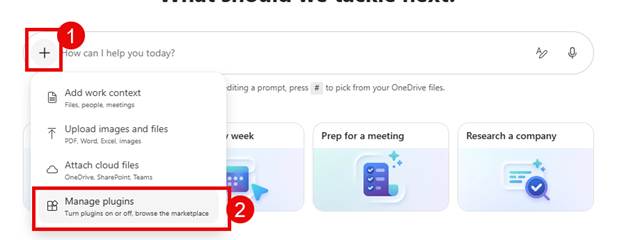
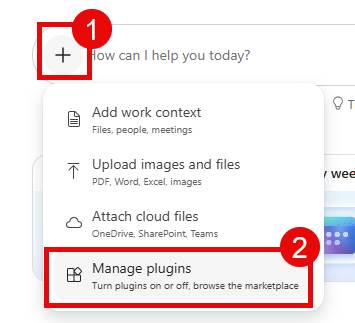
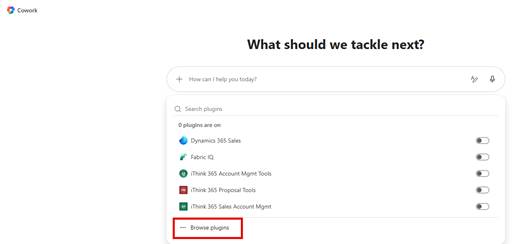
  • Fire up Cowork
  • Click on the + and then Manage plugins.
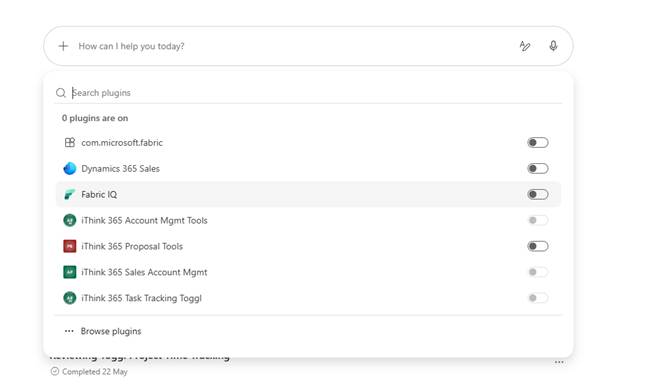
  • You will see a list of the Cowork plugins that have been made available to you.
  • Click on Browse plugins to allow you to install other plugins.

If you want to ensure that a plugin is available when you are kicking off a task in Cowork, make sure you have switched on the plugin.

How to build a Cowork Plugin

So, let’s get to building our Cowork plugin. In my example, we use a task and time management system called Toggl

Helping with everyone’s favourite job

One of the things that we all love doing is filing in your timesheets, don’t we?!

Well, how about if we could get Cowork to help us with this task?

We could ask it to look at our calendar and then automate the filling out of the user’s Toggl and fill out all the timesheets.

Something like this

Hopefully, the demo shows you the power of Cowork and these plugins. What is nice about it is that because you have the skill to describe how to do the task or tasks, these plugins can do more than one job, but you can guide them on how you want them to work.

For example, it is important that we allocate the right project and it is the right project for the right client. So I have asked Cowork to clarify anything that is unclear with or where there are duplicate project names.

Getting started

The following resources were used as a reference for building Cowork plugins; these are all found on Microsoft Learn.

https://learn.microsoft.com/en-us/microsoft-365/copilot/cowork/cowork-plugin-development

What do you need?

Well, you need an idea for your plugin. In our example, we are going to build a plugin to allow a user to fill out their timesheet.

So, to do this, we need the following:

  • A Toggl MCP Server that is secured by Entra ID
  • Entra ID Applications for your MCP Server and one for your MCP Client
  • Visual Studio Code
  • Ability to package up the Cowork Plugin.
  • Configuration within Teams Dev Portal.

Let’s get started.

MCP Server Secured by Entra ID

So first, we need an MCP Server that is secured by Entra ID. I have written a blog post called “Building a secure MCP Server with Entra ID”, which contains a template to create your MCP Server from.

You can find this blog post here

Building a Secure Custom MCP Server secured by Microsoft Entra ID | Doy’s Microsoft 365 and Azure Dev Blog

Once you have downloaded and set up your secure MCP Server secured by Entra ID, then you can start building out your plugin and skill.

Building your Copilot Cowork Plugin

So, I will be honest, I have been using GitHub Copilot a lot, and generally these days I get GitHub Copilot to scaffold out the plugin and help me write the skill. I will share with you via my GitHub repo the skill that I have for Toggl, so you can see what I have.

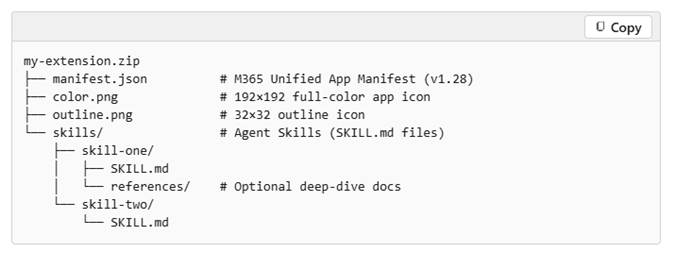
Cowork Plugins follow a similar pattern to other Microsoft 365 Apps. This approach Is used by Microsoft Teams Apps, Declarative Agents, etc., in that they are a zip file which contains a manifest, a set of icons and then the resources for the Cowork plugin.

The Microsoft Learn Article, Build Cowork Plugins, has all the details, so you can read this, but I will talk about the key points and the gotchas that I went through.

https://learn.microsoft.com/en-us/microsoft-365/copilot/cowork/cowork-plugin-development

The plugin file structure is something like this (this is taken from the Microsoft Learn article)

my-extension.zip

In the article, there is a section which shows you how to build a plugin from scratch

https://learn.microsoft.com/en-us/microsoft-365/copilot/cowork/cowork-plugin-development#build-a-plugin-from-scratch

To get going, I opened Visual Studio Code.

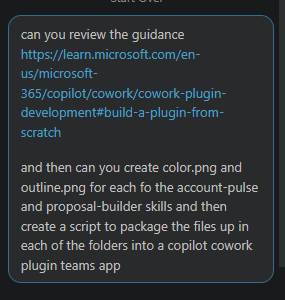
  • I created a folder for each plugin that I was building, and then created a subfolder called skills and then a subfolder within skills with the name of my plugin.
  • Then I added a SKILL.md file which details my skills.
  • I then asked GitHub Copilot

It scaffolded the rest of the structure and created a reusable PowerShell script, which will then package up the plugins into individual zip files.

I have made this all available on GitHub, so take a look. You will be able to access the final result here (minus a couple of URLs).

https://github.com/SimonDoy/microsoft365-dev-samples/tree/main/cowork-toggl-plugin-example

So I would suggest that you clone this repo and use it to get started.

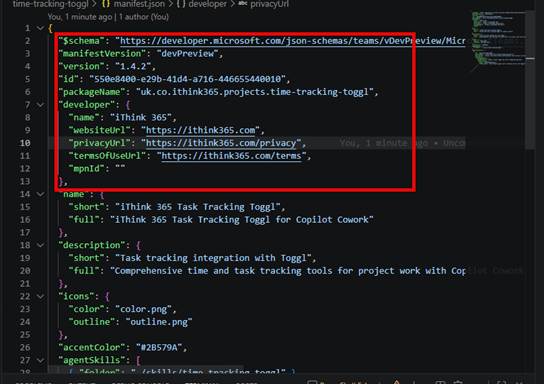
Once you have cloned the repo and downloaded your plugin, you will need to update it for your needs. This is handled by two key files: the manifest.json and the SKILL.md file.

Let’s start with the manifest.json and talk through this.

Firstly, we need to fill out the version number, update the ID and packageName to your specific organisation.

Next, we need to give it a good name and description.

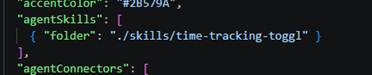
As we get down to the bottom, this is where the exciting stuff lives. There is a section called agentSkills.

Here is where we point to our folder with our SKILL.md file.

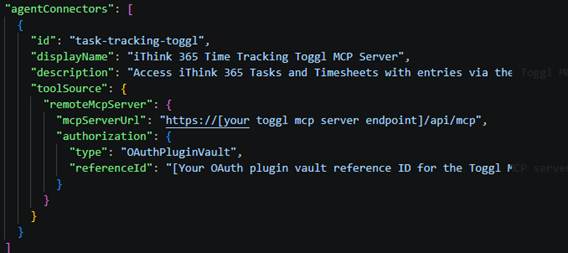
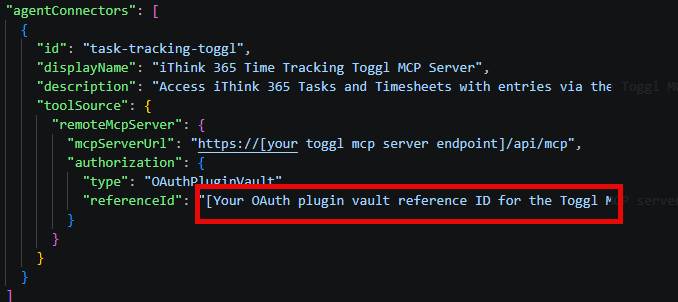
Next is the really exciting bit. The agentConnectors section.

Here we provide an id for our connector, a name and a description of what the connector can do.

Finally, we provide the URL to our MCP Server, which includes the MCP endpoint.

Underneath, we provide authorisation information. Now, when I first read this, I thought the reference ID was just maybe the MCP Client ID we created when we created our secure MCP Server. Please see my blog article on writing a Secure MCP Server to understand what I am saying here.

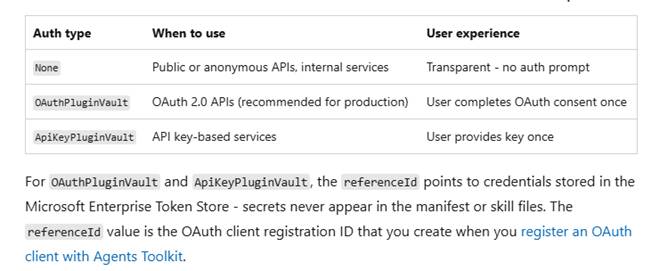
These Cowork Plugins can support Anonymous Authentication, API Tokens (not tried) and OAuth or Open authentication.

However, this is something completely different and requires you to set up an asset via the Microsoft Teams Developer Portal.

What to do to Get your OAuthPluginVault ReferenceId?

So, to get a reference ID for your plugin, what do you need to do?

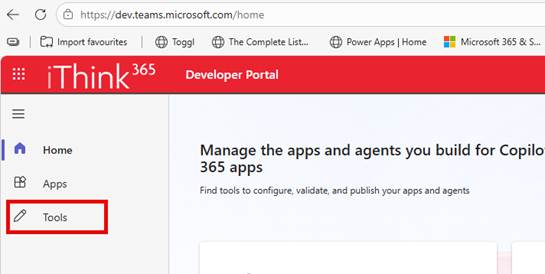
Well, you’ll need to go to the Microsoft Teams Developer Portal

https://dev.teams.microsoft.com

  • Click on Tools.
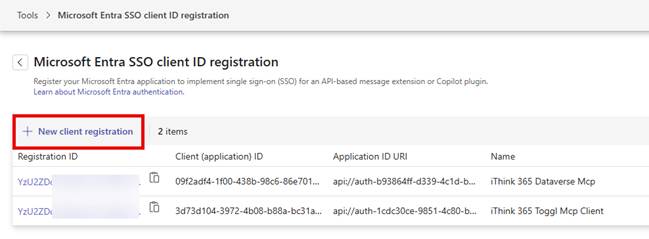
  • Click on Microsoft Entra SSO Client ID registration
  • From here, click on New client registration

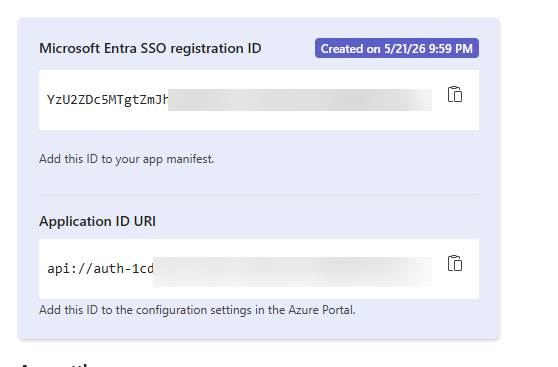
Once you have filled this all out, save your entry, and you will get a screen that displays your registration ID.

You need to update your plugins manifest.json and set the reference ID to this value.

You will also need to go and add this Application ID URI to your MCP Server’s list of Application ID URIs.

This is achieved by editing your manifest file from within the Microsoft Entra ID, App Registrations

  • Browse to https://entra.microsoft.com
  • Click on App registrations under the Entra ID heading
  • Find your MCP Server Entra ID application
  • Choose Manifest and find the identifierUris array JSON.
  • Add the specified URI to the bottom of the array.
  • Save your settings.

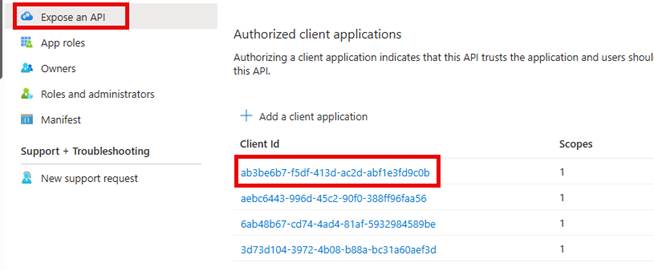
And ensure that the Microsoft Enterprise Token Store App is able to call our MCP Server app.

  • Add ab3be6b7-f5df-413d-ac2d-abf1e3fd9c0b

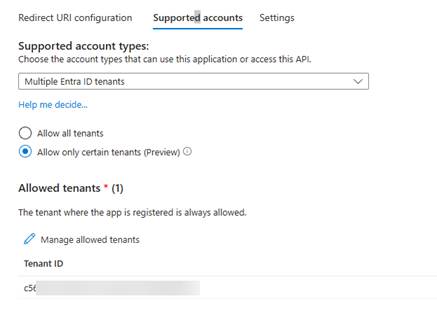
Now, one thing at the time of writing, we need to have our Entra ID applications configured as multi-tenant. I ended up having to set the identifier URIs to be either a valid domain that has been validated against the Microsoft 365 tenant or use the api://[clientid] naming convention.

Once this is done, then you can switch your app reg to multi-tenant and secure it against just your tenant by doing the following:

  • From your App Registration screen in Microsoft Entra ID
  • Click on Authentication, choose Supported accounts
  • Change to Multiple Entra ID tenants.
  • Choose just your tenant id.
  • Click Save

Next, we need to switch focus to our MCP Client that we are using to connect to our MCP Server.

We also need to ensure that the MCP Client is set up for Multiple Entra ID Tenants.

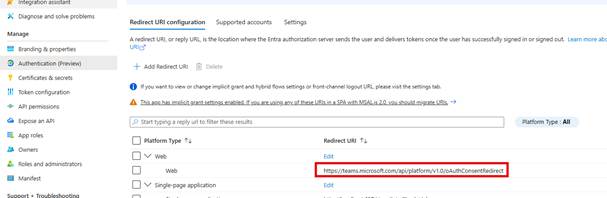
We also need to add a redirect URL for Web Authentication.

This allows the token to be retrieved and stored in the Microsoft Enterprise Token store (probably).

Package your plugin

Now you can save everything and package up your plugin.

  • Check your manifest, check your icons. Make sure you color.png is 192x192px in size and your outline is 32px by 32px.
  • From a terminal run
    • ./package-cowork-plugins.ps1 -PluginsPath “projects”
  • This will create a folder called dist and a zip file with the name of the subfolder time-tracking-toggl.zip.

This zip file is your plugin.

Install the Plugin

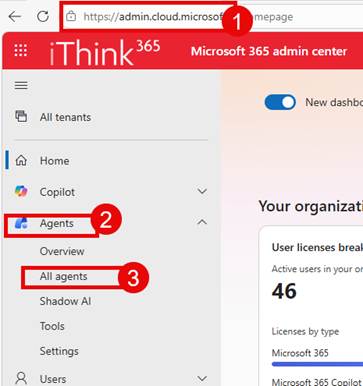
To install the plugin, we need to go to the Microsoft 365 Admin Centre or (MAC).

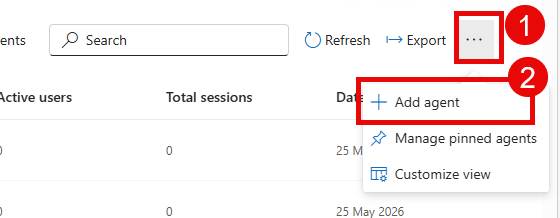
  • Choose the … at the top of the list of agents
  • Choose Add agent
  • Upload your file and click Next
  • Choose who can see your Plugin.
  • Be careful about auto-deploying the plugin, as I have had issues then upgrading a plugin that has been deployed.
  • Follow the wizard until you have successfully installed the Plugin.

You should see a successful screen, but then if you browse the list of agents, you cannot see your plugin anymore. This is just how it is at this time.

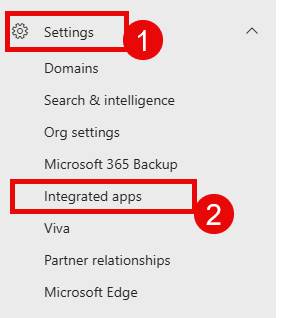
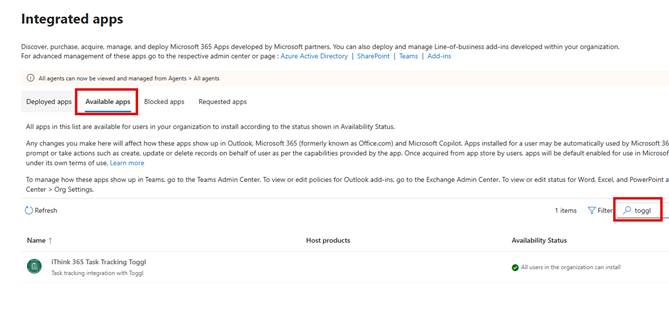
  • Now, Stephan Bisser pointed out that you can view your plugins by clicking on Settings->Integrated Apps

Now I can search from the Available Apps tab.

Enabling your Copilot Cowork Plugin.

Now you are ready to enable your Cowork Plugin.

  • Click on the +
  • Choose Manage plugins
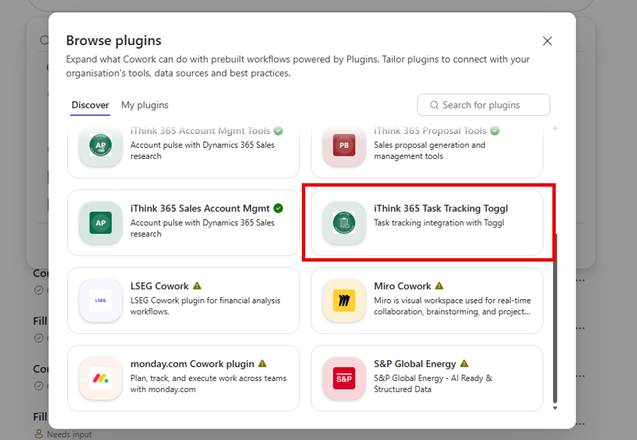
  • Choose Browse plugins
  • From Discover, find your Plugin
  • Click on the Plugin you want to add.
  • Click Add
  • Because this plugin requires authentication, you will need to connect it by clicking on Connect below.

Now, here you will find out if you have set up everything correctly.

If you click on Connect and nothing happens, then check your configuration on the Development Teams Portal.

Right, we should be ready to try it out.

Try out your Cowork plugin

So, let’s try it out. In the following video, you can see what happens.

  • You need to enable your plugin before you kick off the prompt.
  • Now I type out this prompt.

“Please add today’s work tasks from my calendar into Toggl”

Cowork will kick off and connect to the Calendar, and look at the appointments. It then connects to the Toggl MCP Server and tries to resolve the tasks in the calendar to projects and entries in my calendar.

It will air on the side of caution and not add projects to the tasks that it is not sure of.

After a few seconds, the Toggl timesheet has been completed based on the tasks from today.

Cowork Plugin Upgrade Gotchas

Before I wrap up this post, there are a couple of gotchas that I want to mention.

  1. Upgrading the Plugin does not work if you have deployed the plugin to any users. You get an error saying that you have already deployed this version of the plugin.
  2. Make sure when upgrading the plugin, you update the version number in the manifest and the SKILL.md file.
  3. I have seen upgrades silently fail when the color.png icon is not 192px by 192px. The upgrade package is updated, but then nothing happens.
  4. Upgrades to Cowork plugins seem pretty quick, normally within a few minutes.

Conclusion

In this post, we showed you how to create a Cowork plugin with a skill and consume an MCP Server that is secured by Entra ID. We covered the steps needed to set it up correctly, and I hope you try it out with your own MCP server implementations.

There are a few things to say about Microsoft Cowork. We are not sure what the licensing will be, and it is still in public preview, so take the chance to try it out and see how you get on.

As it is still in preview, it’s still a bit rough around the edges, but updates and improvements are happening all the time. As you can see from the demo, it is a really powerful tool, and I am excited to see what people build with it.

Let me know how you get on and what your thoughts are on how you would use it.