

Introduction
When you build and deploy a Copilot Studio Agent with Knowledge as a managed solution, we have a problem.
The problem is that the Knowledge Source Url cannot be changed!
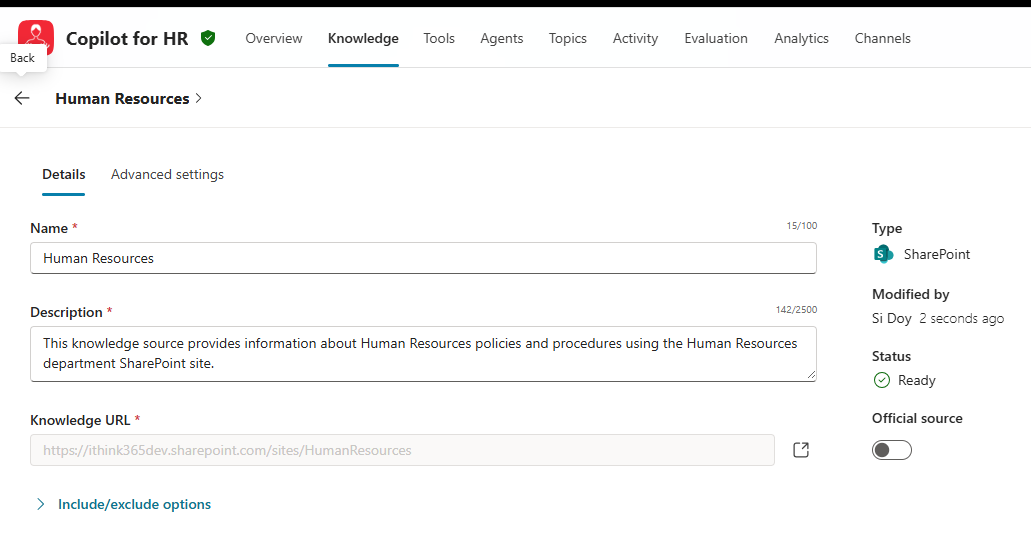
You see, when you configure a Knowledge Source to use information, for example, from SharePoint, you provide a URL for where that knowledge exists by pointing to a SharePoint site or document library.
Ideally, you are using different sources in Development, Testing and Production. When you deploy your Agent in a Managed Solution, the knowledge source is managed, and the URL cannot be changed.
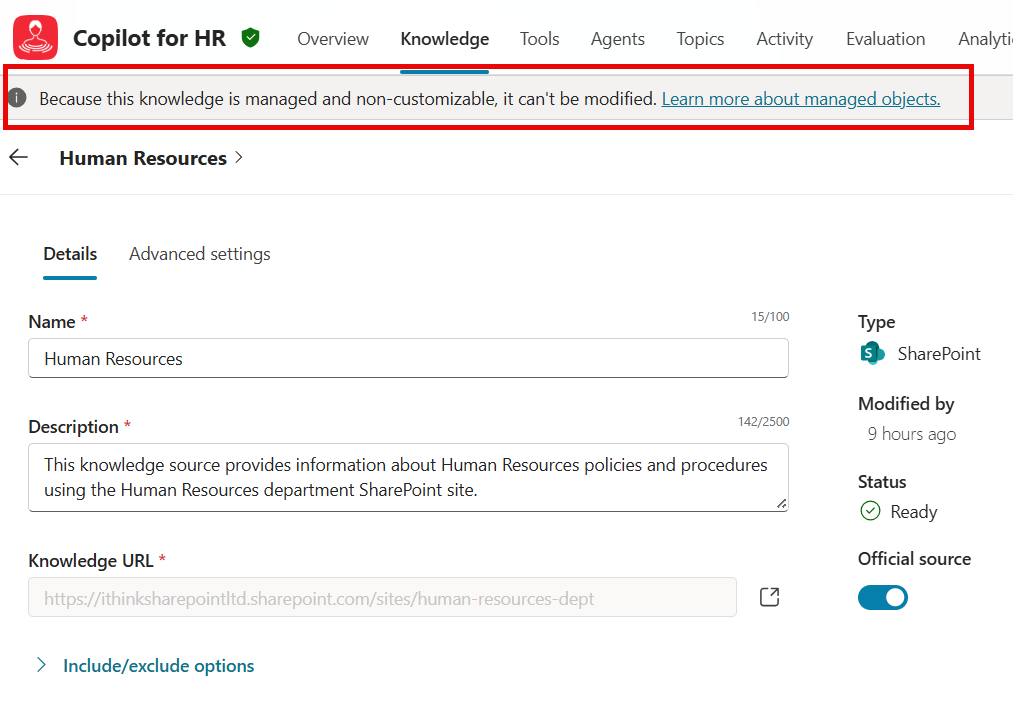
Hopefully, the Copilot Studio product team will allow us to use Environment Variables to configure these URLs in the future, but until that happens, what options do we have?
We could use the same URL in all environments, but it’s not great if we want to do proper testing.
Also, if our development and test environments are built in separate tenants, then we have a problem. This is often the issue when building solutions for customers, where we deploy into our customer tenants.
A Solution
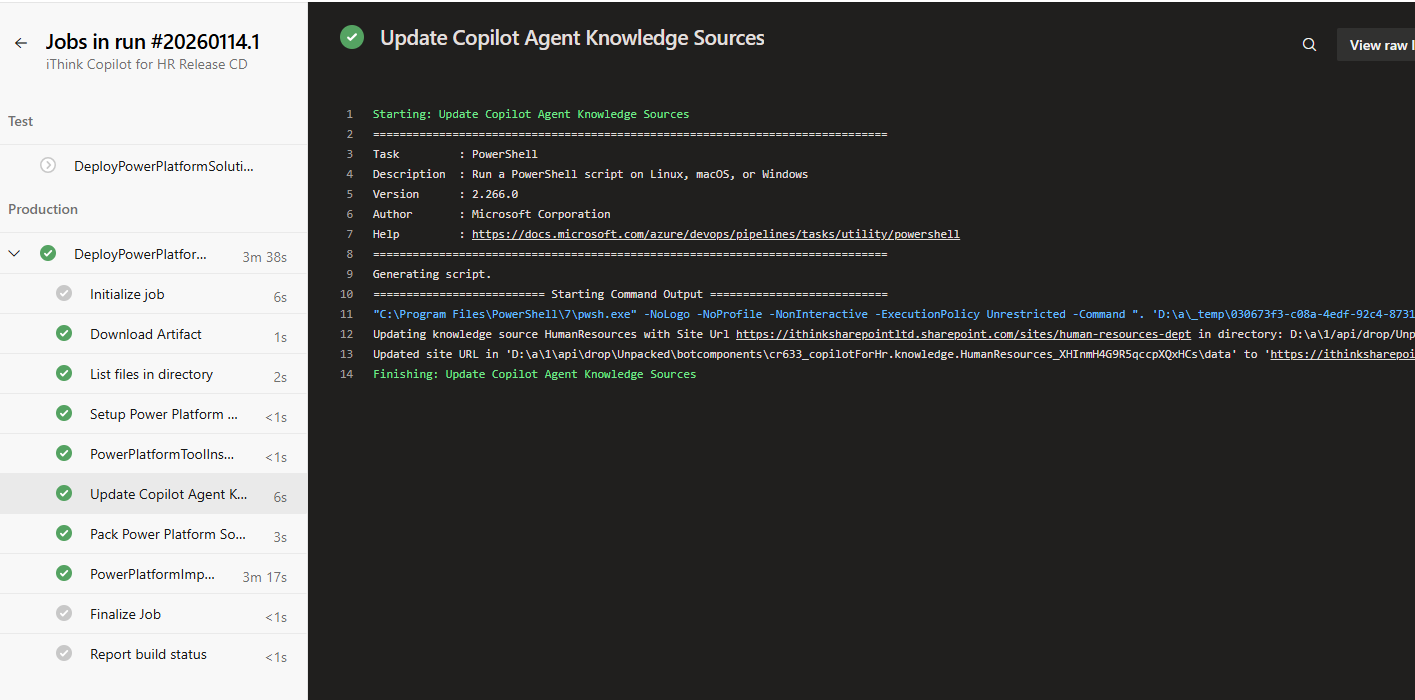
We can utilise DevOps and Build and Release Pipelines to export a solution, unpack it, modify the URL that the Knowledge Source uses, and then repackage the solution for deployment into the target environment.
To get started, read the article on the Power Platform Build and Deployment Pipelines that I built a few years ago. These have been extended to enable support for configuring Copilot Studio Knowledge Support Urls.
I have updated the Github Repo with the latest versions of the pipelines, so you can get access to all the code from there. If you use the instructions in my article above then will be able to get everything set up. However, there are some new parameters that I need to make you aware of.
New Tooling Overview
The pipelines are held in the dev-ops folder, and there is a new folder called tools, which has a PowerShell script called Update-PowerPlatformSolutionKnowledgeSite.ps1
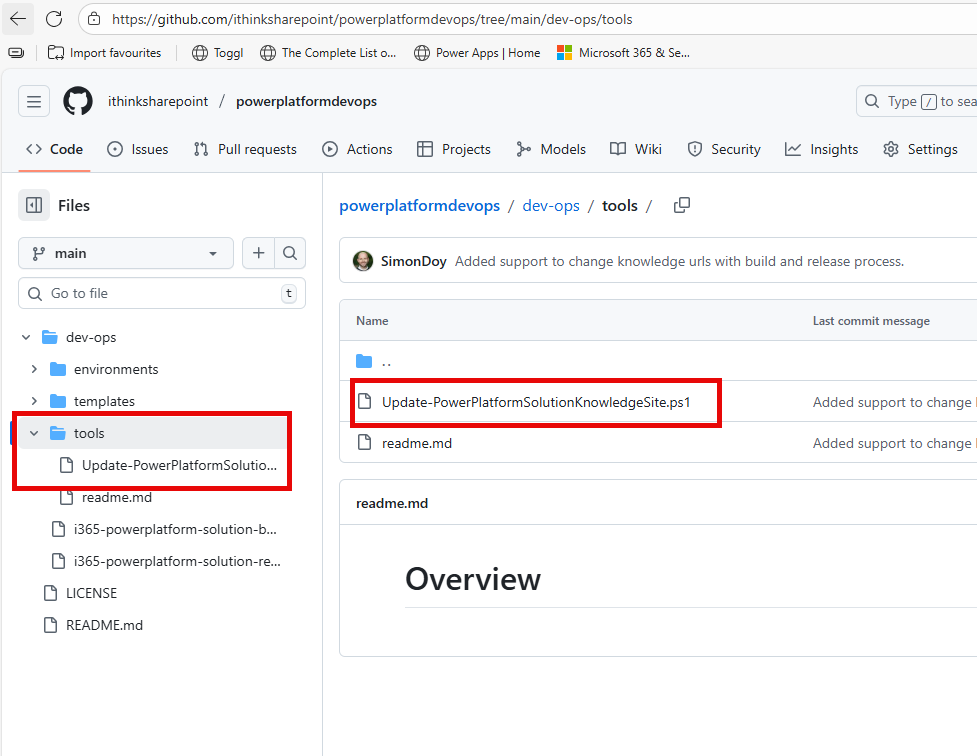
This PowerShell script takes three parameters, and you will need your managed solution as a zip file that has been extracted into a subfolder to test.
The parameters are the following
- DirectoryPath – this is the path to the extract solution zip.
- KnowledgeSourceName – this is the name of the KnowledgeSource within the zip file.
- SiteUrl – this is the URL that we should use for the new KnowledgeSource.
The script will look for an appropriately named folder which has the following naming convention
search value *[AgentName].knowledge.[KnowledgeSourceName]_*
e.g. cr633_copilotForHr.knowledge.HumanResources_XHInmH4G9R5qccpXQxHCs
Once it has found that folder, it will look inside for a data file.
The data file has the following structure, including a site: parameter. The script simply modifies that entry with the provided URL and saves the file.
Now, we simply pack the solution file back and deploy it.
Fortunately, for you, all the pipelines have been updated to do all this great work. You just need to configure them!
Configuring the Pipelines
I am going to presume that you have got the pipelines up and running using the other series of blog posts.
So, to get Pipelines configuring your Knowledge Sources, do the following:
- open /dev-ops/i365-powerplatform-solution-release-pipeline.yml
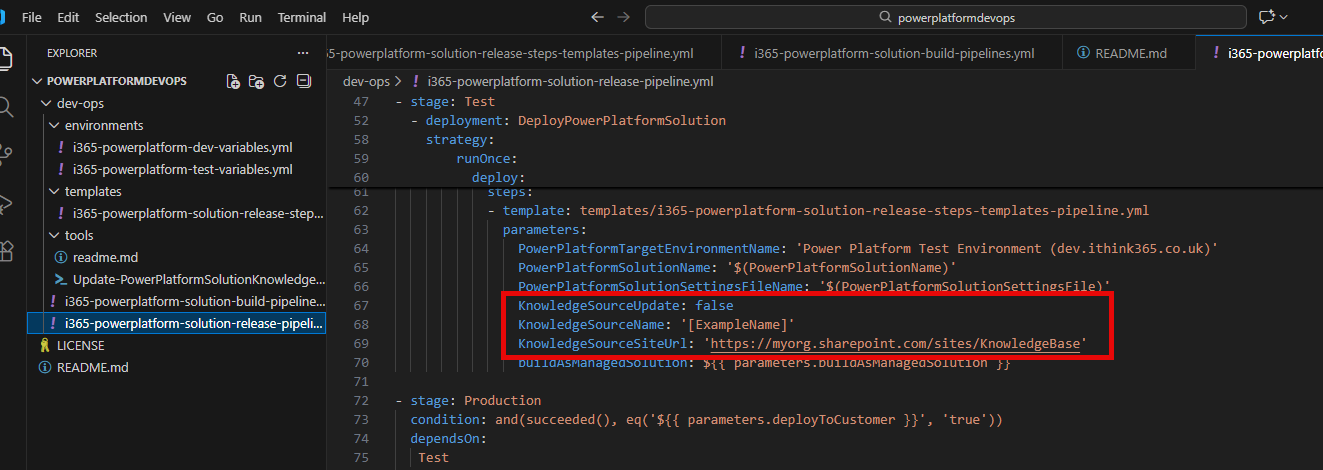
- Find the environment stages in the pipeline (see screenshot above). There are two. Change the parameters to the following
- KnowledgeSourceUpdate: true
- KnowledgeSourceName: [the name of your knowledge source, see above about the script to find out how to get that name]
- KnowledgeSourceSiteUrl: [the URL to your SharePoint site that you wish to change it to for that environment]
- Save your pipeline and commit changes to git.
- Run the build pipeline to get all the tools into the assets for your release.
- Run the release pipeline (the one we have just changed).
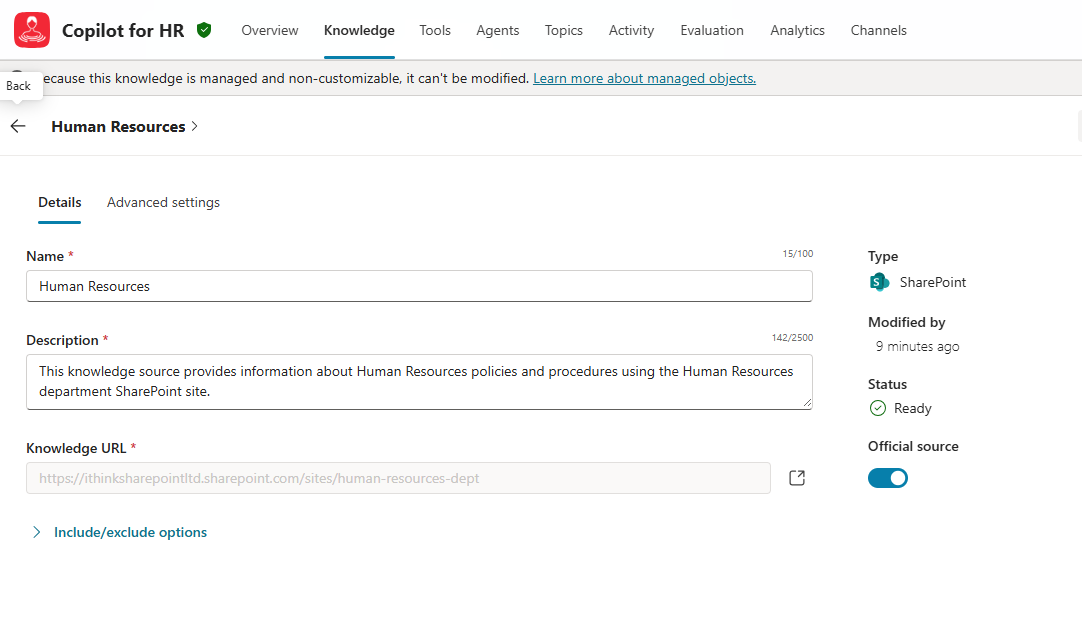
Now, when your Agent is deployed, your knowledge URL will be changed.
Here is an agent in Development.
Here is the agent being deployed by the pipeline.
Here is the agent deployed into Production
Conclusion
In this article, we discussed the challenge faced in configuring the knowledge sources when deploying Copilot Agents built on Copilot Studio with managed solutions.
I highlighted an approach for making changes to the URL of these knowledge sources.
I hope that it helps you and let me know how you get on!
 Doy's Microsoft 365 and Azure Dev Blog