Skip to content
  • View menu
  • View featured posts
  • View sidebar

Doy's Microsoft 365 and Azure Dev Blog

Simon Doy blogs shares knowledge, expertise on Microsoft 365, Microsoft Azure and Business Transformation.

  • About
  • M365 North
  • Maturity Model for Microsoft 365
  • Twitter
  • Andrew Connell’s Blog
  • Chris O’Brien’s Blog
  • Dave Coleman’s Blog
  • Eric Shupp’s Blog
  • Glyn Clough’s Blog
  • Jaap Vosser’s Blog
  • Martin Hatch’s Blog
  • Paul Culmsee’s Blog
  • Seb Matthew’s Blog
  • Stephen Cummins Blog
  • Stuart Starrs Blog
  • The MOSS Show (Podcast)
  • The SharePoint Podshow
  • UK SharePoint User Group
  • Wes Hackett’s Blog

Featured

PowerShell: Getting Sandbox Solutions in a SharePoint Web Application

November 30, 2015December 21, 2015 by Simon Doy

SharePoint 2013/Online Attachment Viewer Enhancement

November 17, 2014July 27, 2022 by Simon Doy

Search

Recent Posts

  • Errors with Copilot Studio and MCP? – Are you Stateless?
  • Tackling ContentFiltered Errors in Copilot Agents – Rethinking Copilot Agent Architecture
  • Azure AI Foundry Agent Service Fails with MCP Tool Sorry, something went wrong
  • Improving my approach: Using AI to Documenting Solution Designs for Development Teams

Most Active Posts

  • Setting up for Power Platform Dev Ops Pre-requisites
  • Setting up Build and Release Pipelines to deploy Power Platform Solutions.
  • Resolving Power Automate Outlook Connector's Create Event Operation Cannot find Calendar Issue
  • Teams AI Library Blog Series: Episode #1 - Setup A Teams AI Library-Based Application to Reason Over SharePoint Content with Azure AI Search
  • Welcome

Tags

microsoft Microsoft 365 PowerShell SharePoint SharePoint 2010

Links

Archive

Recommended Resources

  • Andrew Connell’s Blog
  • Chris O’Brien’s Blog
  • Dave Coleman’s Blog
  • Eric Shupp’s Blog
  • Glyn Clough’s Blog
  • Jaap Vosser’s Blog
  • Martin Hatch’s Blog
  • Paul Culmsee’s Blog
  • Seb Matthew’s Blog
  • Stephen Cummins Blog
  • Stuart Starrs Blog
  • The MOSS Show (Podcast)
  • The SharePoint Podshow
  • UK SharePoint User Group
  • Wes Hackett’s Blog

  • Simon Doy's avatar

Enter your email address to subscribe to this blog and receive notifications of new posts by email.

Join 6,771 other subscribers

Twitter Feed

Tweets by simondoy

Yorkshire SharePoint User Group Sessions

  • List
  • Calendar
< Previous Next >
«

December 2025

»
Sun Mon Tue Wed Thu Fri Sat
30 1 2 3 4 5 6
7 8 9 10 11 12 13
14 15 16 17 18 19 20
21 22 23 24 25 26 27
28 29 30 31 1 2 3
+ Add your own event Eventbrite

Images

February 8, 2022February 8, 2022 by Simon Doy

Outlook, To-do asking to sign in every day on Android phone

  • Image
  • Uncategorized
  • Android, Microsoft 365, Signin
  • Leave a comment

Introduction

For the past couple of months, I have been battling an issue on my phone.

Each morning I start Outlook up and it hangs for a moment and then prompts me to sign into Microsoft 365. The same behaviour is seen with To-do and the office apps were not behaving as well as I would like and cache old data.

I have seen lots of other people experiencing the issue as well and a few other posts on Microsoft community sites asking for help.

Well, it occurred to me that I had set the Android developer mode, which might be causing the problem. I switched this off a few days ago and since then I have not been asked to re-sign into Outlook or any of the Microsoft 365 Apps. Additionally, my phone, not surprisingly is much faster!

I remember switching this one when using screen casting software to present my mobile in a presentation.

Here is how to switch it off

How to switch off Android Developer Mode

To switch off do the following:

  • Open the settings app
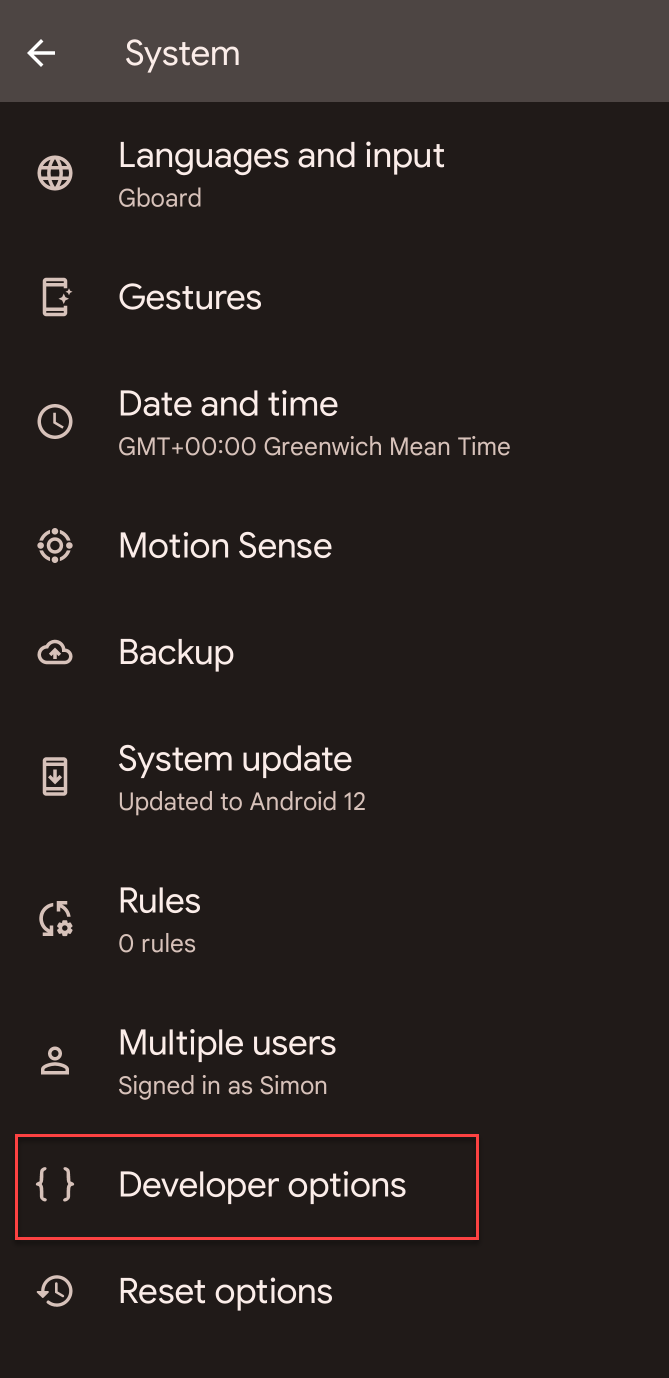
  • Scroll to the bottom of the settings app and choose System -> Developer options
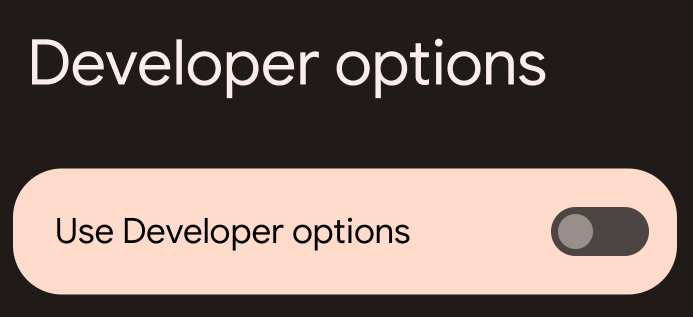
  • Disable the Developer options by toggling the switch to off.
Developer options is enabled
Developer options switched off

Conclusion

I hope if you have this problem, it solves your issue.

Since switching this off I have not had the issue with Outlook or any of the other Microsoft 365 app asking to sign-in.

Please let me know if it does or does not via the comments.

Switching on Android Development

You can enable Android developer mode by doing the following:

  • Open the settings app
  • Scroll to the bottom of the settings app and choose System -> About phone
  • Click on the build number seven times
  • You will be asked to put in your pin number.
  • The developer mode option is enabled and available by closing the Settings app and choosing Settings-> System.

Share this:

  • Click to share on Facebook (Opens in new window) Facebook
  • Click to share on X (Opens in new window) X
  • Click to email a link to a friend (Opens in new window) Email
  • Click to print (Opens in new window) Print
Like Loading...
Blog at WordPress.com.
  • Subscribe Subscribed
    • Doy's Microsoft 365 and Azure Dev Blog
    • Join 60 other subscribers
    • Already have a WordPress.com account? Log in now.
    • Doy's Microsoft 365 and Azure Dev Blog
    • Subscribe Subscribed
    • Sign up
    • Log in
    • Report this content
    • View site in Reader
    • Manage subscriptions
    • Collapse this bar
 

Loading Comments...
 

    %d