If you use SharePoint lists as much as we do, one of the challenges you might have is, How do quickly find the information you need?
This feature I will have to say passed me by and after discussions with a few others, I fortunately was not the only one!
The other day I saw an X / Twitter post about how to programmatically set filters in SharePoint lists.
I thought to myself well that is great but how do you do it via the SharePoint interface so then I discovered this feature.
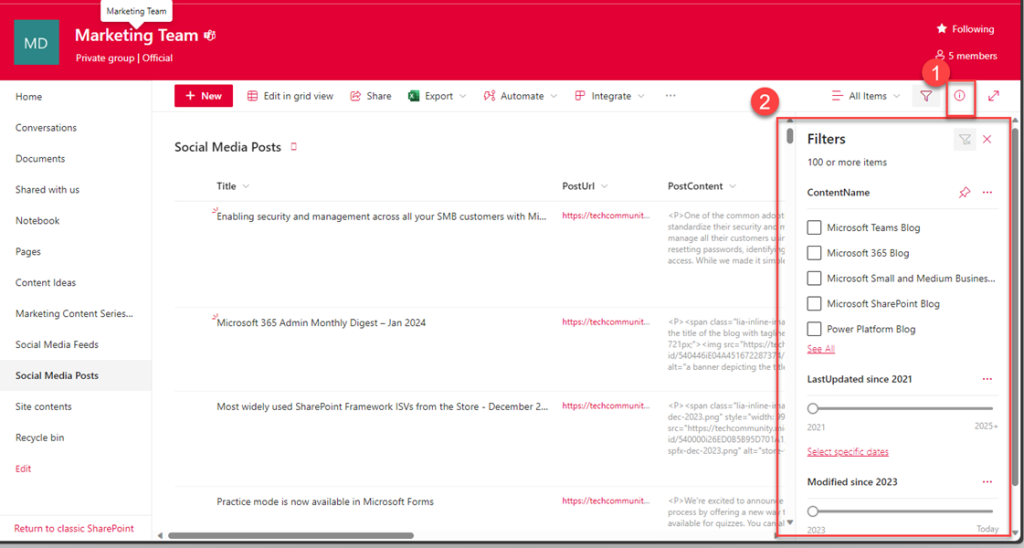
So, we have had the filter pane for a while, and I have used it by clicking on the column I want to filter and choosing the value to filter by, as shown below.
However, since December 2021 you have had the filter pane which allows you to quickly select filters on multiple columns!
This is a great feature and I will be honest not something that I had picked up on.
You can configure the columns that are displayed in this filter pane using the column, column settings Pin or Unpin from the filters pane.
Anyway, that is it a quick tip to make life easier when you are using Microsoft SharePoint lists and need to filter your data more quickly!
Recently I was asked by a customer using SharePoint to host all their insurance claim content how they could exclude the content from showing up in searches from their Microsoft 365 Intranet.
Search has evolved in Microsoft 365 with two engines, Microsoft 365 Search and SharePoint Search. Had it been configuring SharePoint search I would have no problem showing them how to do it.
With Microsoft 365 Search, I was sure there was a way as I remember hearing something about search configuration in the back of my mind but was not sure.
The issue was more important because they had switched off search within the site collection. So that the content did not display but this had some unexpected consequences.
Including, they could no longer find content associated with their claims application. List searching and filtering did not work anymore. This made administering the application difficult which had millions of associated files. Finally, if they later wanted to improve performance by using search to improve the experience for their teams then this would no longer be possible.
A solution was needed!
Fortunately, Microsoft’s effort in improving the Microsoft 365 Search configuration experience has made it possible to do what we want to do.
Let’s provide a bit of background.
Background
So how can this be achieved?
Well, firstly, let us explain what needs to be configured. When you do a search from any of the Microsoft 365 search boxes for example in SharePoint or Teams you get a set of results as shown below.
Example Microsoft 365 Search from SharePoint Online
You can see a summary of search results but if you click on “Show more results” then this expands to a dedicated search results page. This results page allows you to refine the search across different categories (called search verticals) to make it easier to find the right resource. By default, these search verticals include things like filtering to just files, people, news, and images.
Example of a search result with search verticals.
We bring up the search verticals as this is how we will config Microsoft 365 Search to exclude content. We will also need to configure each of the search verticals as well to ensure that one of them does not bring unexpected content back.
Review the vertical settings, and click “Update Vertical”
Wait a few seconds
Click Done and go back to the vertical settings screen.
With this vertical completed now repeat the process for the other search verticals.
How long does this take to apply to Microsoft 365 Search?
In my experience, it can take up to 3-4 hours for the changes to take place.
Conclusion
So hopefully armed with this knowledge you can now configure your Microsoft 365 Search so that it excludes content without disabling search and making life harder for you and your admin teams when they are working with sensitive local content.