


Introduction
If you are working with an Action Coach Business Coach like Iain Strachan as I am you will be used to the 90-day strategy planning session.
In these 90-day planning sessions, we define 4 Goals which are 3 business goals and one personal goal and build a plan on how to achieve those goals over the next 90 days.
This is the second post in a series on how you manage, track and deliver your 90 day Action Coach Success Plan, if you have not read the first post, then start there.
Viva Goals – The Key To Tracking Your Goals and Metrics
Viva Goals is part of the Microsoft Viva suite, allowing businesses to define objectives and key results. These OKRS are goals that are measured using key results to track your progress and define when the objective has been met.
You can access Viva Goals through the web address, https://goals.cloud.microsoft/.
Business leaders need to be able to bring their teams on the journey with them and have a way to communicate and track the progress of business strategy initiatives. Viva Goals is a great way to achieve this.
With Viva Goals, you keep the progress of your OKRs up to date by you and your teams checking in.
The frequency of check-in is configurable but to keep in line with Action Coach success pack delivery you would check in once a week to update your goals progress.
However, one of the challenges with OKRs is the process of keeping the data up to date and correct.
First of all you can start manually entering the stats you are measuring but you really want to make sure that it is easy to update, track and monitor.
With the initial version of Viva Goals, there were some integrations that allowed the check-ins to take place automatically but they were a little limited.
Fast forward to today and now the options are much more interesting and there are two integrations that we will focus on today.
The Viva Goals team have enabled Power BI, Planner and Project for the web integration. The Power BI integration is really a game changer because through Power BI we can integrate with a huge number of different data sources automatically by linking Power BI visualisations to the Viva Goals key result.
The important aspect of Power BI is that you create the Power BI with the visualisations which display the metrics that we wish to measure. These measurements are key to when you are building your 90 strategy plan, in your workshop you will be asked how you would measure the goal and track whether it has been achieved.
There are a couple of options for how you would track these metrics, you can manually track them but if you really want to automate and track these metrics then you should look at ways to pull this data from your business systems.
An example might be the net profit margin figure which you could manually enter which is fine, however, if you want to make life easier then you can automate it by pulling from Xero into Power BI through some integration.
When businesses are looking to achieve their goals there is often activities that need to be planned and tracked. Traditionally with the Action Coach this is done via a Microsoft Excel spreadsheet which is fine but often I would find that keeping in mind what the activities are and what was to do this week would require me to keep checking on the Excel spreadsheet.
However, with Viva Goals and Planner integration, it is possible to make the activities that go along with the goal part of your key result that supports the objectives.
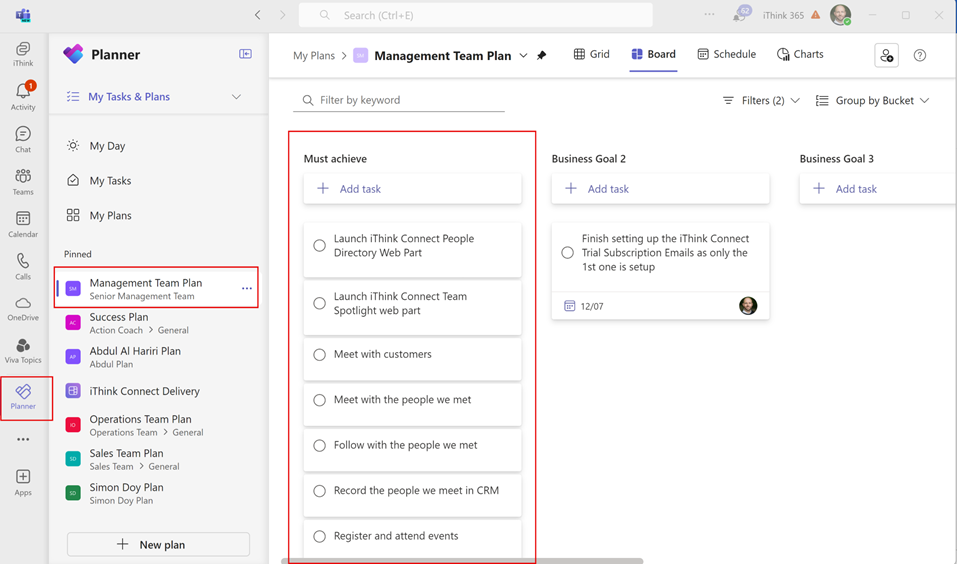
You can create an initiative and then link that initiative to Planner. In the previous section, we talked about how we create a bucket for each objective/goal and using an initiative we can link the objective to that bucket in Planner and see the progress of the tasks that are taking place.
Let’s delve into how we might set this all up, via this video.
How do you get your data into Power BI?
Well this is the key to it all.
When you start, I suggest keeping it simple and tracking your key results metrics manually. As you build your capability you can start to look to automate it as shown in the video.
Of course, we at iThink 365, would love to help you get your data, Power BI, Viva Goals and Planner setup and give you something that you can then maintain and enhance.
Conclusion
By combining these Microsoft 365 services together, you can build a really powerful and excellent tool that will help you manage, track and deliver your 90-day plan.
I wish you good luck with your 90-day planning!
Let us know if this helped you and reach out if we can help you!

 Doy's Microsoft 365 and Azure Dev Blog