


Introduction
This is the first blog post, which will make up a series of posts on Microsoft Planner App-Powered Tasks and Business Scenarios.
- Post One: Introduction to App-Powered Tasks [This Article]
- Post Two: How to Build Planner App-Powered Tasks
- Post Three: Gotchas, Findings, Thoughts and Bugs.
- Post Four: Features I would like to see in App-Powered Tasks.

Ever since Microsoft Planner was released, the key benefit in my mind is the ability to see all of your tasks across Microsoft 365 in one place. The fact that your tasks were visible via Planner, Outlook and Teams made it even better as the tasks are accessible in the tools that we use every day.
However, the weakness of Planner is the ability to put some controls around the tasks. For example, you could not stop users from being able to delete a task or complete a task that has not been assigned to them. This does limit how organisations can make use of Planner. Ultimately you are left with having to rely on the users behaving themselves or not making mistakes.
Secondly, there isn’t a way to customise the task user interface, add custom columns or a custom interface to manage the task completion process.
Thirdly, it is not possible to extend Planner so that we can surface tasks from other systems and applications. Imagine if could make these visible within Planner too! Then this truly would give us and our users a central source of truth for all tasks in an organisation. Just think no more searching for the application or forgetting to do something because you forgot to go into a system to check.
Well, all of that was true until now. To address these issues, Microsoft has been working on this and has come up with Business Scenarios. The feature has been in preview for a couple of years and to be honest there has not been much chatter about it recently. Part of me wondered if it was never going to make it out of preview and get canned.
However, at the end of 2024, another feature was announced which went into preview, a feature for Planner called App Powered Tasks. You can read more about this in this blog post, https://techcommunity.microsoft.com/blog/plannerblog/provide-more-tailored-task-experiences-with-app-powered-tasks-now-in-public-prev/4297090.
App-Powered Tasks are the next step on the path for Business Scenarios. App-powered tasks allow the ability to provide a custom user interface to manage the task process. App-Powered Tasks are configured using the Business Scenarios APIs found in Microsoft Graph. Now we have a way to bring tasks from other systems, and business processes with greater control and flexibility for how Planner tasks are processed.
Currently, I need to let you know that these features are in preview so Microsoft does not support this feature in production environments. Just be aware if you do choose to build a production solution, you do so at your own risk as Microsoft might make changes to the APIs and Teams integration which may break your solution.
Anyway, now we have that caveat out of the way let’s show a demo of App-Powered Tasks and then we can talk more about what they can do.
In the following video, I am going to demo an App-Powered Planner Task solution. This solution is for a classic problem. How do you communicate a policy to everyone in the organisation and evidence who has read and not read the policy?
Take a look
As you can see the Microsoft Planner interface becomes updated with a link to start the task. Whilst the rest of the task information is visible, none of it can be changed.
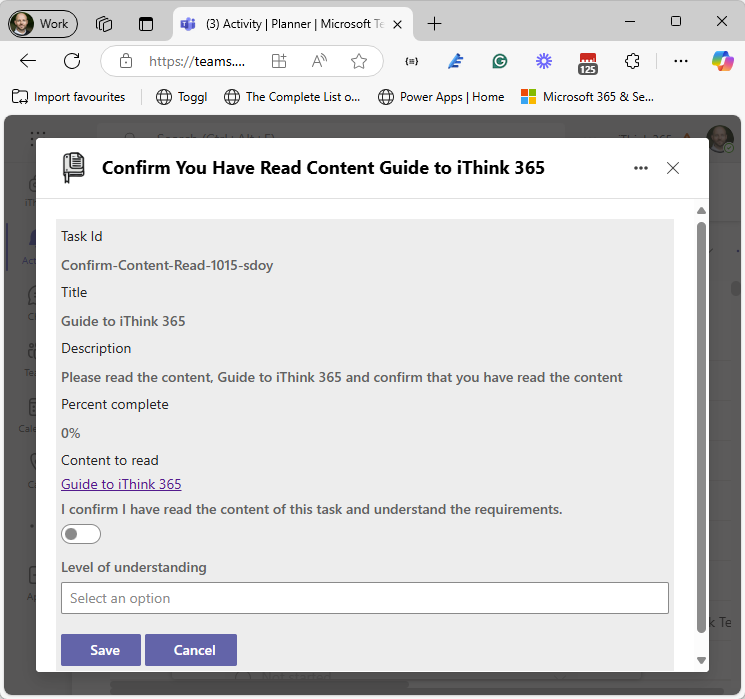
In this example, we are taken to a Microsoft Teams app that is built using SPFx (SharePoint Framework). The Teams app presents the user with a custom user interface that allows us to capture key information including whether they read and understood the content and also how well they felt they understood the content.
On saving the task, the task is completed and you can see that we have written back into the Planner task details that the user provided.
Conclusion
So, now you have seen what the solution looks like and I hope it has given you some food for thought and you’ll give it a try.
In the next blog post, I will delve into the architecture of the App-Powered Tasks, share the code that I have used to build the solution and also go through the process of building the solution highlighting the things to think about and areas that I had trouble with.
In the meantime, you can take a look at the following Microsoft articles on App-Powered Tasks.
https://learn.microsoft.com/en-us/microsoftteams/app-powered-tasks-in-planner
Thanks for reading and please let me know if you have any questions and what you think of the article.
 Doy's Microsoft 365 and Azure Dev Blog