I was chatting with one of our customers last week and they said how annoying it was that they could never find files that people have shared with them. They talked about how they could not remember when it was and searched through their emails, searched through SharePoint but could not remember the file name and so could not find the file.
Well, I tell you what when I showed him a little feature in Microsoft Onedrive he was suddenly much happier!
Tip
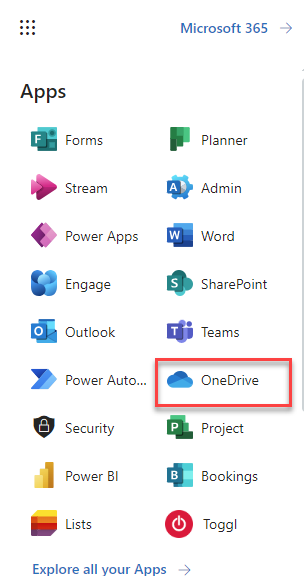
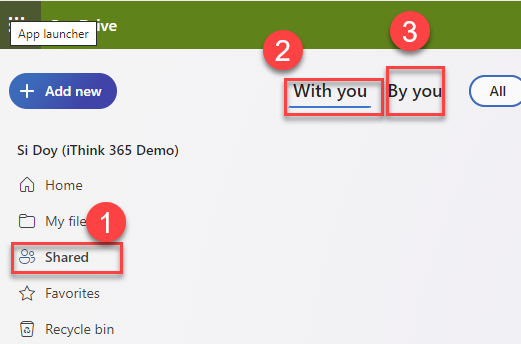
So, if you want to see files that have been shared with you and also files that you have shared with someone then check out this tip.
The question came about as we started them on the Microsoft 365 Intranet and SharePoint Online migration journey. Of course one of the issues, when you move content to web-based tools like SharePoint, is that people worry that they cannot find their documents anymore.
Finding documents on a network drive is much harder if you do not know what you are looking for. However, with the network drive, if people cannot find the content they will either ask someone, give up and re-create it. With tools like SharePoint and its search engine the users will most likely find the content but it may take more time than it should.
So then how can we help Microsoft 365 understand what our content is and improve the experience for the people we work with to find our content?
This article explains some ways that you can make your content more discoverable, it is focused on Microsoft Word documents but some of the tips will also work with the Microsoft Office suite.
The number one way that Microsoft 365 search establishes a match to a search query is through the file name. So, make sure you give your file a good name that makes it discoverable.
Think about what terms others or you would use to when searching for the document. If you name it well it might save you or your colleagues from having to write the document again!
Every document, workbook, and slide deck in the Microsoft Office suite has a Title field. This is one of the key values that Microsoft 365 search engines use to indicate relevance.
Where to find the Title field property in Microsoft Word
To populate the title field property in Microsoft Word, click File -> Info and fill out the Title field with the name of your document.
Admittedly this is not the most discoverable location for this field and will likely get forgotten about.
Help your users make their documents more discoverable by embedding the Title field in your organisation’s template.
In Microsoft Word, you can embed that Title field that we discussed in tip two into the main part of the document. Now, a user can fill out the Title field whilst they are writing their document in their flow of work.
To do this do the following, in your Microsoft Word document add the Title field into the document by choosing.
From Microsoft Word, click Insert -> Quick Parts -> Document Property -> Title
Menu options to add the Title Field
This will insert the Title field into your Word document.
The Microsoft Word document can now be turned into a Word template and formatted with your company’s branding and shared across the organisation. Now when users create a Word document with the template then they will fill in the Title field as part of the process.








 Doy's Microsoft 365 and Azure Dev Blog